Customization
The Atom Material Icons plugin allows you to define custom icon mappings for files, folders, and PSI (Program Structure Interface) elements. Through the Associations Editor, you can view all existing associations or create your own to tailor the IDE’s appearance to your needs.
Associations Editor
Section titled “Associations Editor”To access the Associations Editor, navigate to Settings/Preferences > Appearance & Behavior > Atom Material Icons > * Associations*.
The editor is organized into several tabs:
- File Associations: Map file names and extensions to specific icons.
- Folder Associations: Map directory names to unique folder icons.
- Folder Open Associations: Define icons for “hollow” folders when their contents are open.
- PSI Associations: Map code-level elements (classes, interfaces, methods, etc.) to custom icons.
File Associations
Section titled “File Associations”File associations allow you to match files based on their names or extensions using regular expressions (Regex).
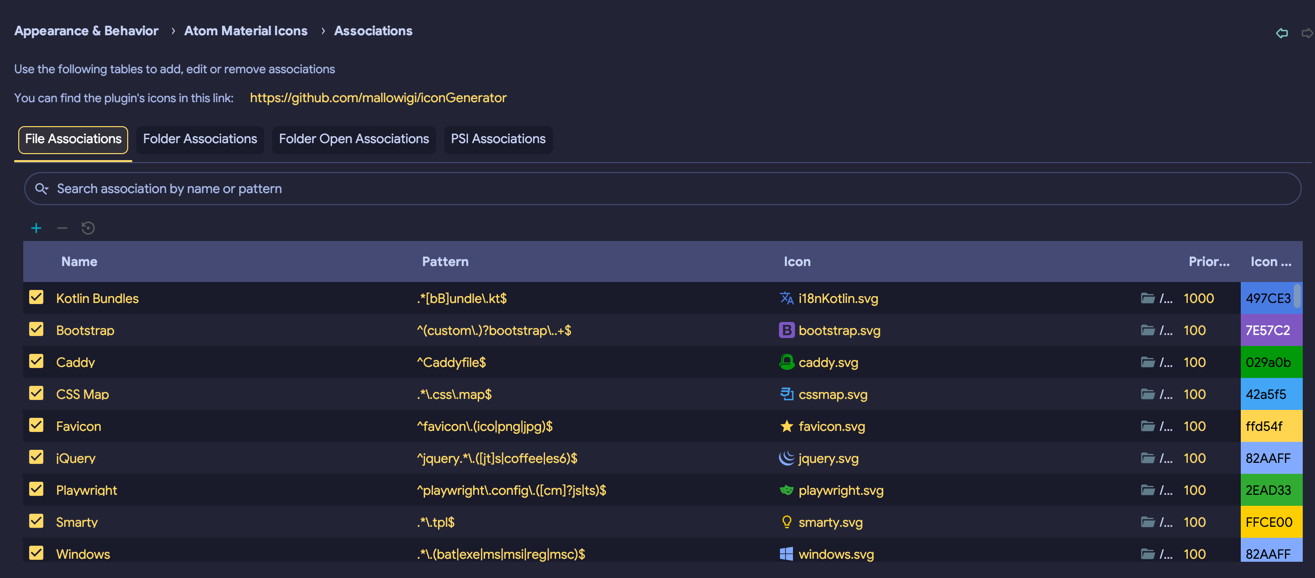
Each association entry contains:
- Name: A descriptive name to identify the association.
- Pattern: A regular expression that the file name must match.
- Icon: The icon to be displayed.
- Priority: Determines which association wins if multiple patterns match (higher numbers take precedence).
- Icon Color: An optional color override applied to the SVG icon.
You can edit these fields directly in the table. Click the Icon column to select from the built-in library, or click the Folder icon to load a custom SVG from your computer.
Folder Associations
Section titled “Folder Associations”Folder associations function similarly to file associations but apply specifically to directories.
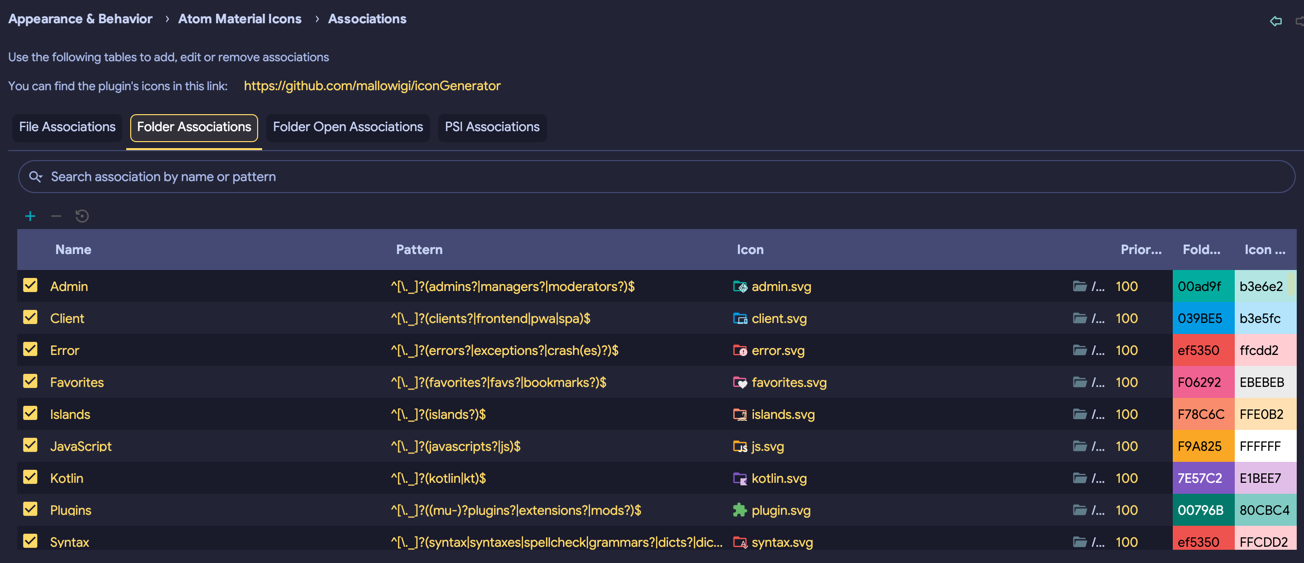
You can define patterns to match common directory names (e.g., src, test, docs) and assign them distinct icons to improve project
navigation.
Each association entry contains:
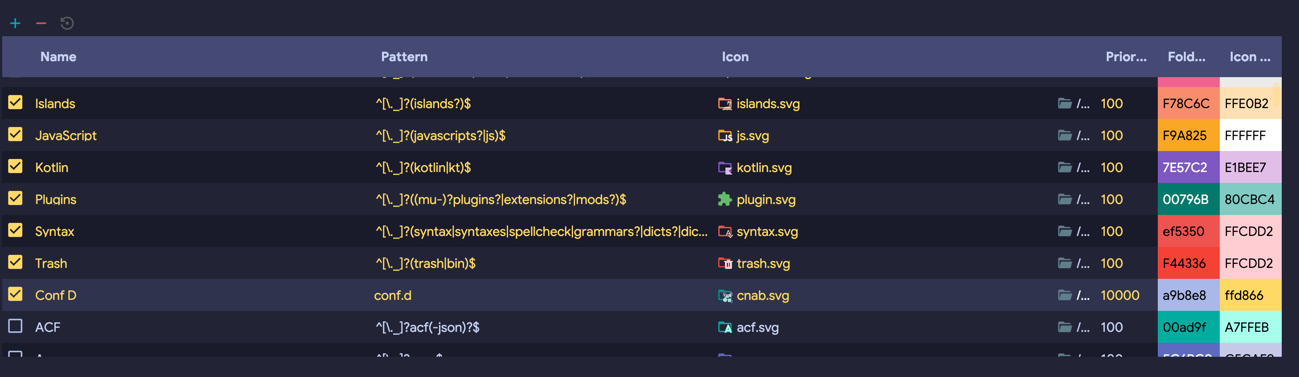
- Name: A descriptive name for the association.
- Pattern: A regular expression matching the folder name.
- Icon: The icon to be displayed.
- Priority: Precedence for overlapping matches.
- Folder Color: An optional color override for the base folder icon.
- Icon Color: An optional color override for the icon overlay.
PSI Associations
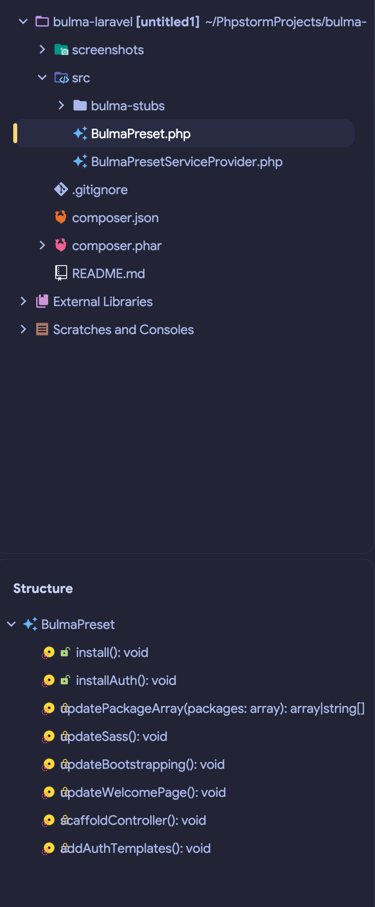
Section titled “PSI Associations”PSI associations differ from file and folder associations because they replace the icons (glyphs) for internal code elements in the editor and Structure View. This includes classes, interfaces, methods, and variables.
Instead of a file pattern, these associations match a specific icon Identifier. You can find the standard IntelliJ icon identifiers at https://intellij-icons.jetbrains.design.
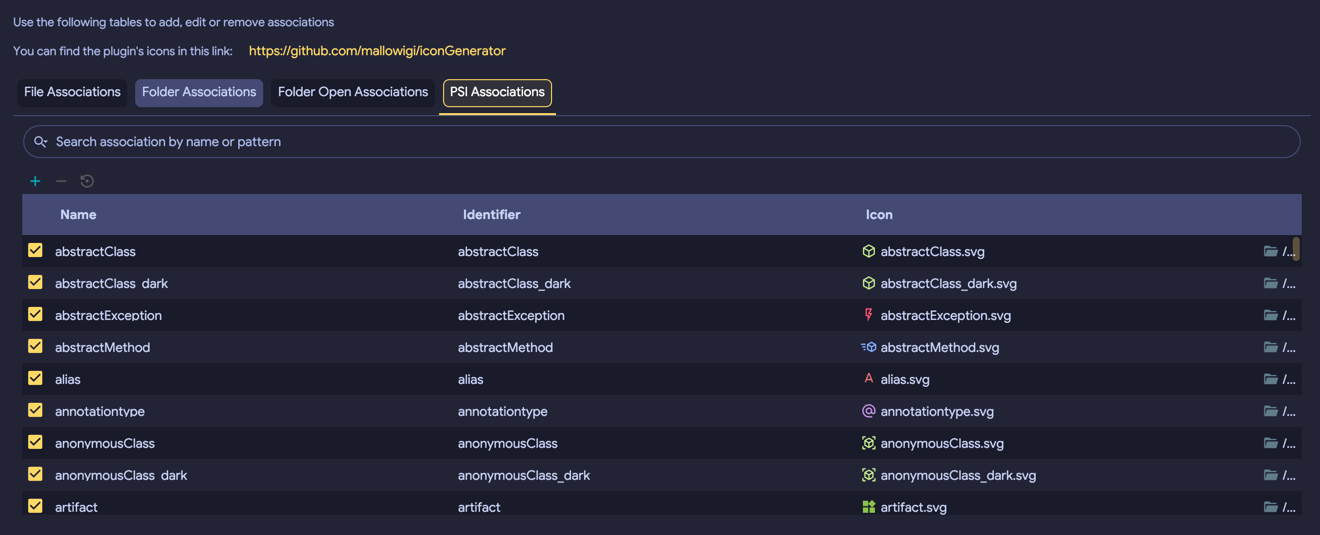
Each association entry contains:
- Name: A descriptive name for the association.
- Identifier: The internal name of the IntelliJ icon you wish to replace (without the
.svg). - Icon: The replacement icon to be displayed.
Example: Custom PSI Icons
Managing Associations
Section titled “Managing Associations”The Associations Editor provides several tools for managing your custom mappings:
- Enable/Disable: Use the checkbox to toggle an association without deleting it.
- Edit: Click directly on any cell in the table to modify its value (name, pattern, priority, color, or icon).
- Add New: Click the + button to create a new association.
- Remove: Click the - button to delete a selected association.
- Reset: Click the Reset button to revert an association to their original default state.
Customizing Colors
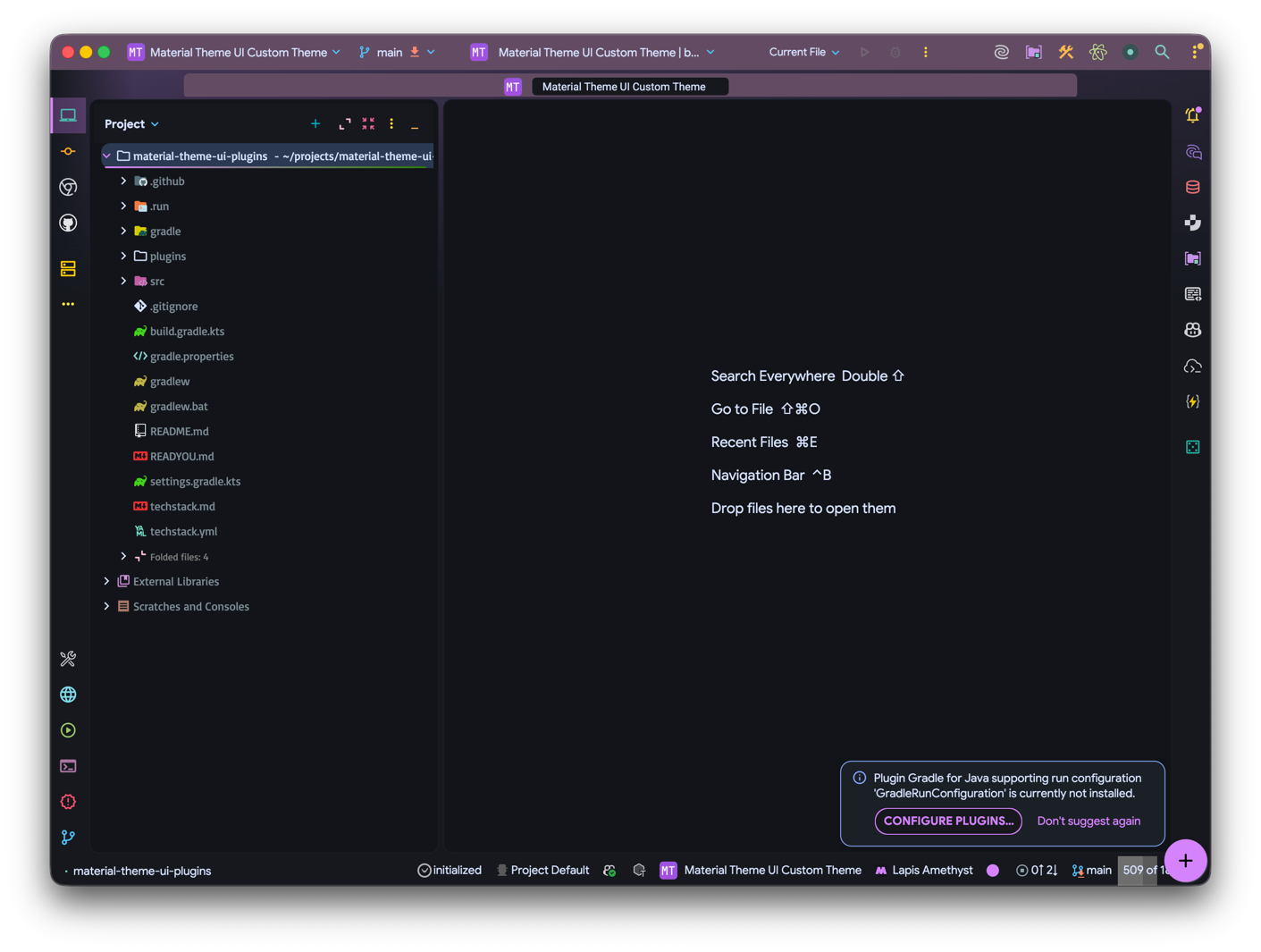
Section titled “Customizing Colors”The Icon Color and Folder Color fields allow you to override default SVG colors. This feature dynamically replaces the fill and
stroke attributes within the SVG with your specified color.
Example: Customized Icon and Folder Colors
Context Menu Shortcuts
Section titled “Context Menu Shortcuts”A faster way to create associations is directly from the Project Tree:
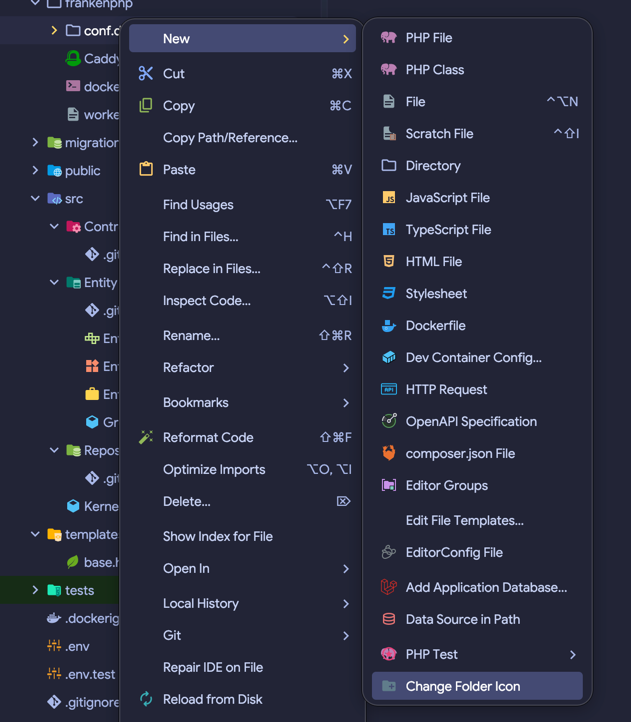
- For Folders: Right-click a folder and select Change Folder. This will create a new folder association and open the editor for further customization.
- For Files: Right-click a file and select Add Atom Association. This will open a dialog pre-filled with the item’s name.
Example: Changing a Folder Icon
Example:
Project-Specific Associations
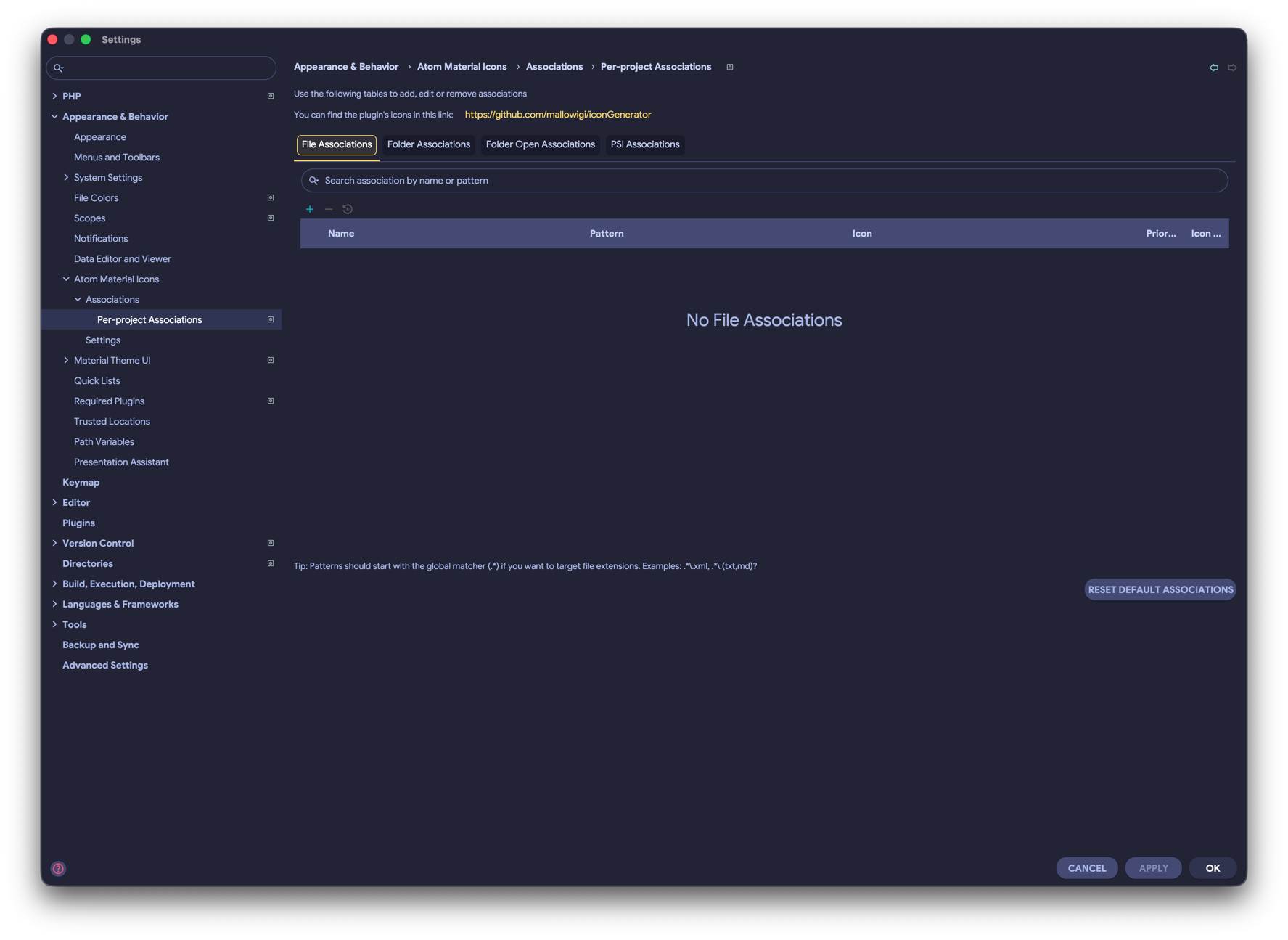
Section titled “Project-Specific Associations”By default, associations are global and apply to all projects. However, you can also define per-project associations. This is useful if you want different icon sets for different tech stacks (e.g., Java vs. Python) within the same IDE instance.
Automatic Detection
Section titled “Automatic Detection”With over 2,000 icons covering a wide range of languages and frameworks, scanning every association for every file can be inefficient—especially since many are highly specific. To optimize performance, only the most popular languages and patterns are enabled by default.
To save you from manually enabling the rest, the Automatic Detection feature scans your project for files and folders matching disabled associations and enables them for you. This process runs in the background whenever a project is opened, ensuring no impact on your workflow. Once an icon is automatically enabled, it remains active until you manually disable it.
What’s Next?
Section titled “What’s Next?”- Icons Reference - Browse all available icons and their default patterns