Installation
Requirements
Section titled “Requirements”- JetBrains IDE: IntelliJ IDEA, WebStorm, PyCharm, PhpStorm, Android Studio, or any other JetBrains IDE
- IDE Version: 2020.1 or later (recommended: latest version)
- Java: JDK 11 or higher
Installation Methods
Section titled “Installation Methods”The easiest way to install the plugin is directly from the JetBrains Marketplace.
- Open Settings/Preferences
- Go to
File > Settings(Windows/Linux) orIntelliJ IDEA > Preferences(macOS) - Keyboard shortcut:
Ctrl+Alt+S(Windows/Linux) orCmd+,(macOS)
- Navigate to Plugins
- Click on
Pluginsin the left sidebar
- Search for the Plugin
- Open the
Marketplacetab and search forAtom Material Icons
- Install the Plugin
- Click
Installnext to the plugin entry
- Restart Your IDE
- Restart your IDE to activate the plugin
Use this method if you cannot access the JetBrains Marketplace.
- Download the Plugin
- Download the latest ZIP file from the JetBrains Marketplace
- Open Plugin Settings
- Go to
File > Settings > Plugins(orIntelliJ IDEA > Preferences > Pluginson macOS)
- Install from Disk
- Click the gear icon ⚙️ and select
Install Plugin from Disk...
- Select the ZIP File
- Browse to the downloaded ZIP file and click
OK
- Restart Your IDE
- Restart your IDE to complete the installation
For developers who want to build the plugin from source.
-
Clone the Repository
Terminal window git clone https://github.com/mallowigi/a-file-icon-idea.gitcd a-file-icon-idea -
Build the Plugin
Terminal window ./gradlew buildPluginThe built plugin will be located in
build/distributions/. -
Install the Built Plugin
Follow the Manual Installation steps using the ZIP file from
build/distributions/.
Verification
Section titled “Verification”After installation, confirm the plugin is working correctly:
- Open any project in your IDE
- Check that file icons have changed to Material Icons
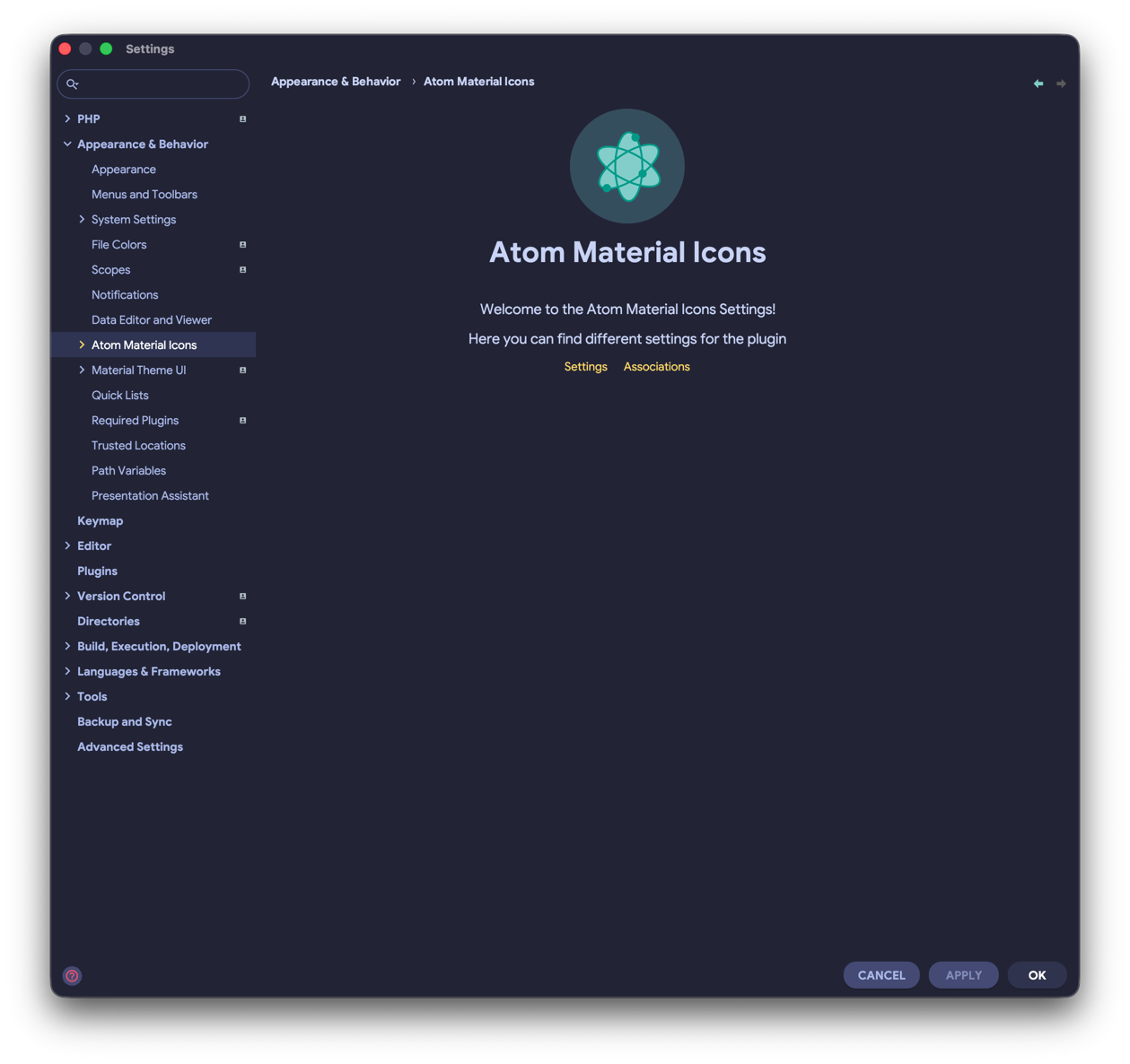
- Go to
Settings > Appearance & Behavior > Atom Material Icons - Verify that the plugin configuration options are visible
What You Should See
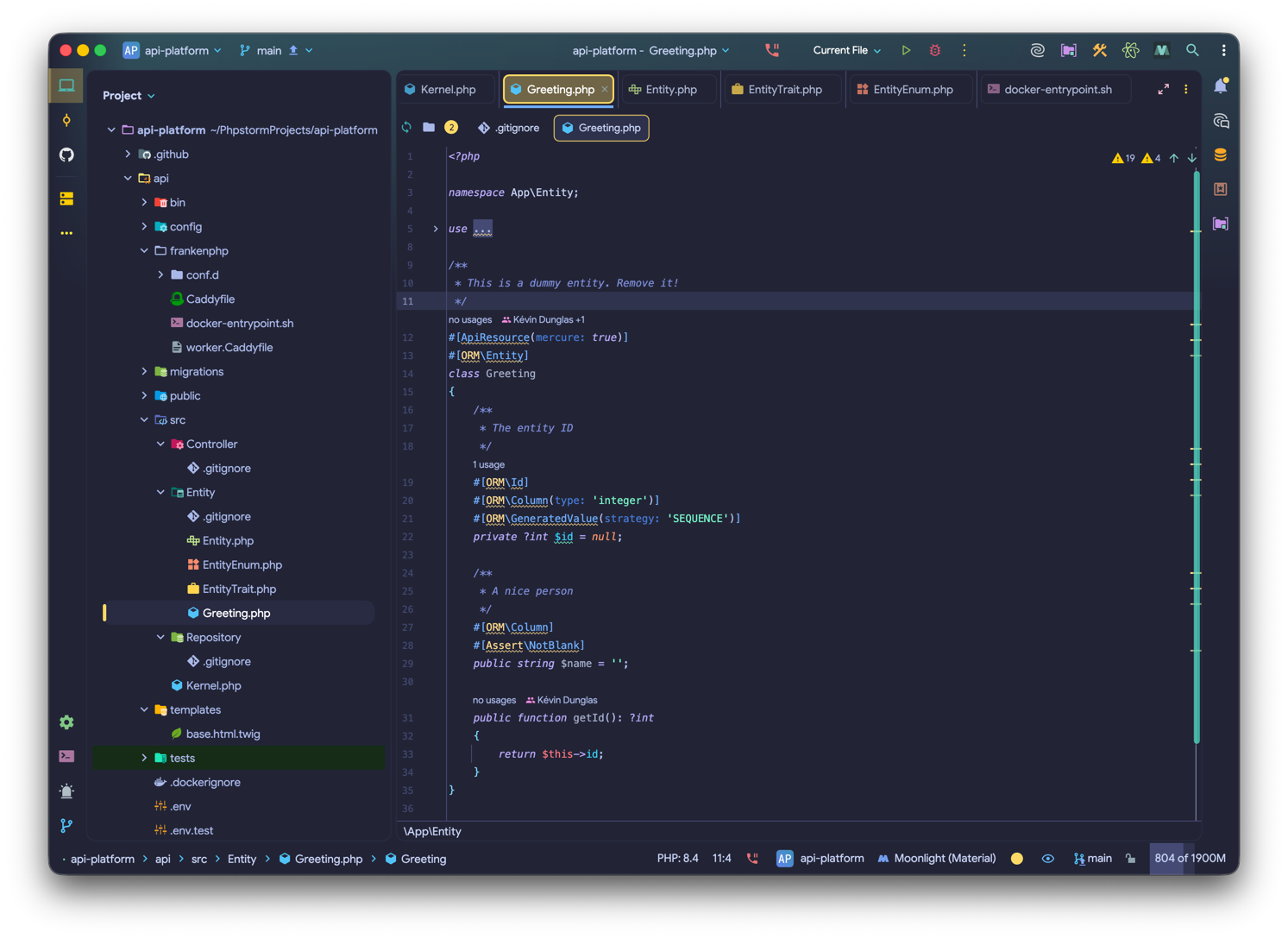
Section titled “What You Should See”Once the plugin is installed and active, your IDE should look like this:
Troubleshooting
Section titled “Troubleshooting”Plugin Not Showing Up
Section titled “Plugin Not Showing Up”If the plugin doesn’t appear after installation:
- Make sure you fully restarted the IDE
- Check that your IDE version is 2020.1 or later
- Verify the plugin is enabled under
Settings > Plugins
Icons Not Changing
Section titled “Icons Not Changing”If icons remain unchanged after installation:
- Go to
Settings > Appearance & Behavior > Atom Material Iconsand ensure the plugin is enabled - Toggle the “File Icons” option off and back on
- Restart the IDE after making any changes
No Icons Visible
Section titled “No Icons Visible”If no icons appear, the “Hide File Icons” setting may be enabled:
- Go to
Settings > Appearance & Behavior > Atom Material Icons - Uncheck the “Hide File Icons” or “Hide Folder Icons” option
Performance Issues
Section titled “Performance Issues”If you notice performance degradation:
- Make sure the Low Power Mode setting is enabled
- Make sure to enable Icon Indexing. This will take some time at start but will improve performance on later loads.
- Disable unused features such as “Hollow Folders” or “Monochrome Filter”
- Consider switching to the minimal icon set
What’s Next?
Section titled “What’s Next?”Now that the plugin is installed, explore how to use and customize it:
- Basic Usage - Learn the fundamentals
- Configuration - Customize the plugin
- Features - Explore all features