
Basic Usage
Getting Started
Section titled “Getting Started”Once installed, the plugin automatically replaces standard file and folder icons with vibrant, context-aware icons based on file extensions, frameworks, and specific naming conventions.
While the plugin works out of the box with sensible defaults, it offers extensive customization options to suit your workflow.
Accessing Settings
Section titled “Accessing Settings”To customize the plugin, navigate to the settings:
Path: Settings/Preferences → Appearance & Behavior → Atom Material Icons
Keyboard Shortcuts:
- Windows/Linux:
Ctrl+Alt+S, then search for “Atom Material” - macOS:
Cmd+,, then search for “Atom Material”
Main Features Overview
Section titled “Main Features Overview”File Icons
Section titled “File Icons”The plugin automatically assigns icons based on:
- File extensions:
.js,.ts,.py,.java, etc. - Frameworks: Rails models, Next.js pages, NestJS controllers, etc.
- Build Tools & Packages:
package.json,webpack.config.js,build.gradle, etc. - Special Use Cases:
README.md,.gitignore,_config.yml, etc. - Custom Associations: Define your own file-to-icon mappings in the settings.
Folder Icons
Section titled “Folder Icons”Contextual folder icons are applied based on:
- Common patterns:
src,docs,test,assets,components - Framework-specific folders:
node_modules,.git,.vscode,dist - Custom Associations: Define your own folder-to-icon mappings in the settings.
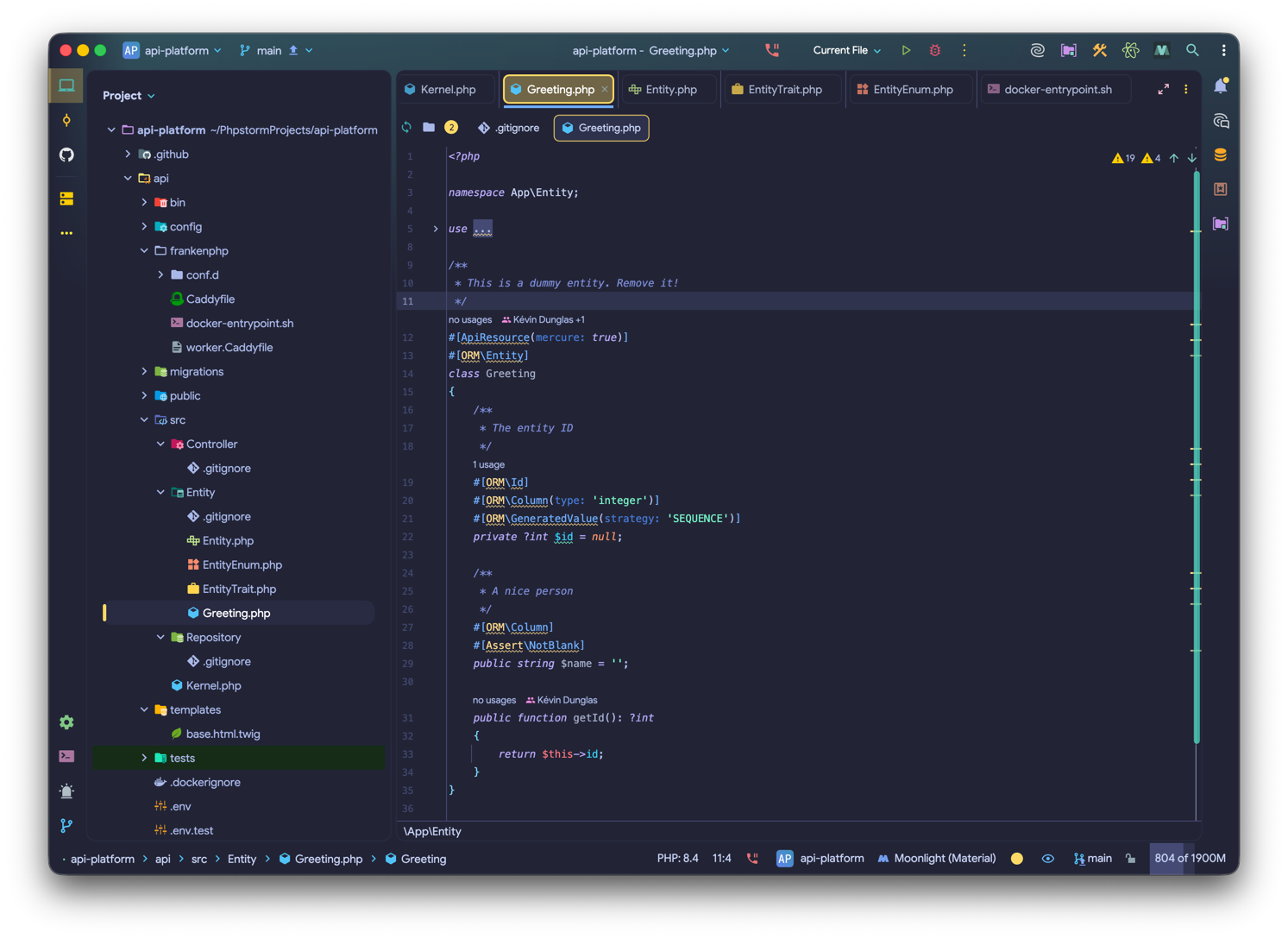
Here’s how icons appear in the project explorer and editor tabs:
UI Icons
Section titled “UI Icons”The plugin also enhances the IDE’s interface by replacing standard UI icons:
- Toolbar Icons: Action buttons and tool window icons.
- Gutter Icons: Debugger, version control, and error indicators.
- PSI Icons: Code structure elements such as classes, methods, and variables.
What’s Next?
Section titled “What’s Next?”Now that you understand the basics, explore more advanced features:
- Configuration - Detailed settings and options