Configuration
Atom Material Icons Configuration
Section titled “Atom Material Icons Configuration”Here is a comprehensive guide to the available configuration options for the Atom Material Icons plugin. You can access these settings via * Settings/Preferences* > Appearance & Behavior > Atom Material Icons.
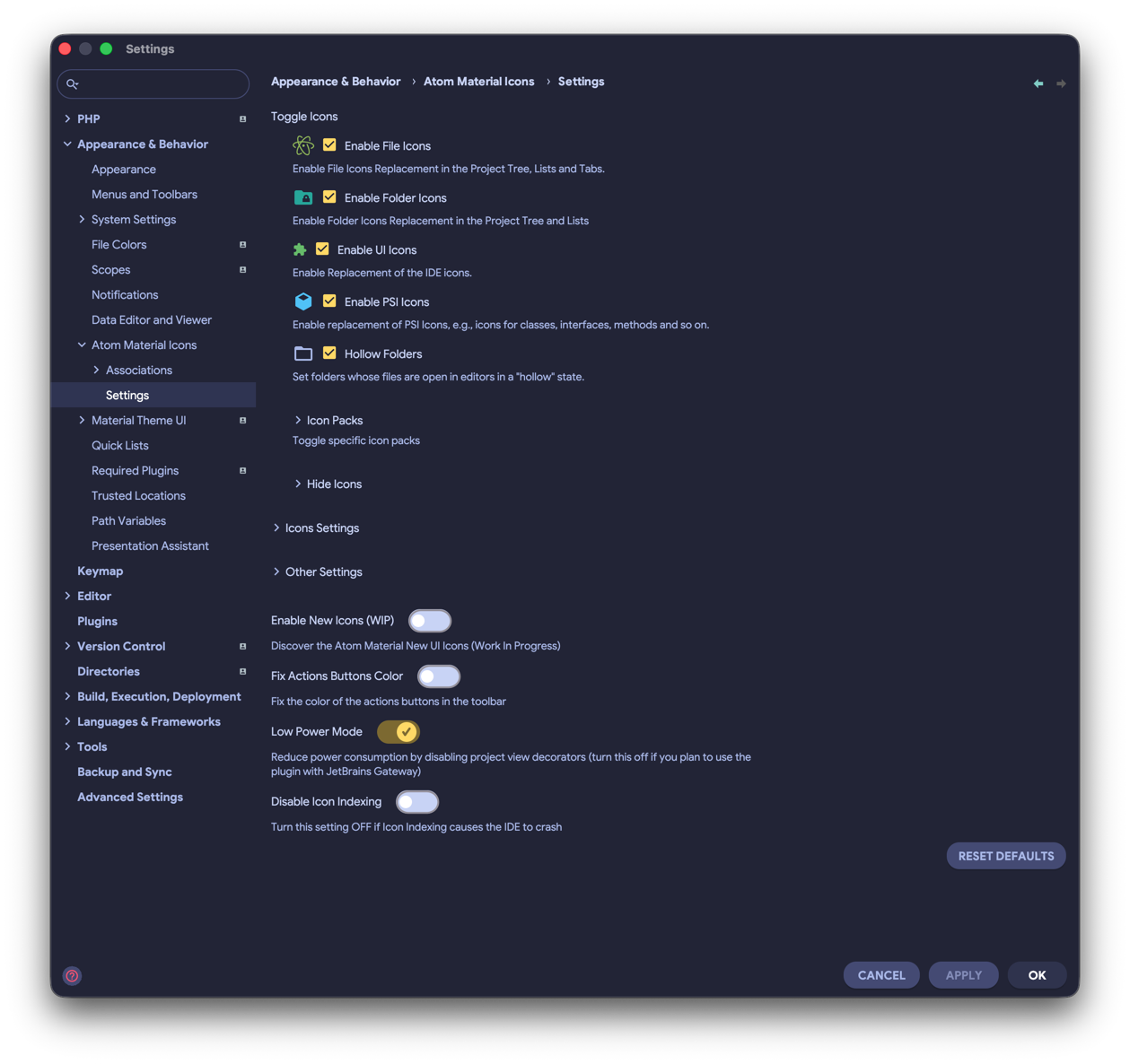
Toggle Icons
Section titled “Toggle Icons”This section allows you to enable or disable specific categories of icons across the IDE.
- Enable File Icons: Replaces default file icons in the Project Tree, lists, and editor tabs.
- Enable Folder Icons: Replaces default folder icons in the Project Tree and lists.
- Enable UI Icons: Replaces various IDE interface icons (e.g., toolbar buttons, tool window icons).
- Enable PSI Icons: Replaces Program Structure Interface (PSI) icons, such as those for classes, interfaces, methods, and variables.
- Hollow Folders: When enabled, folders containing files that are currently open in the editor will appear “hollow,” making it easier to identify active directories.
Examples
Section titled “Examples”Without File Icons:
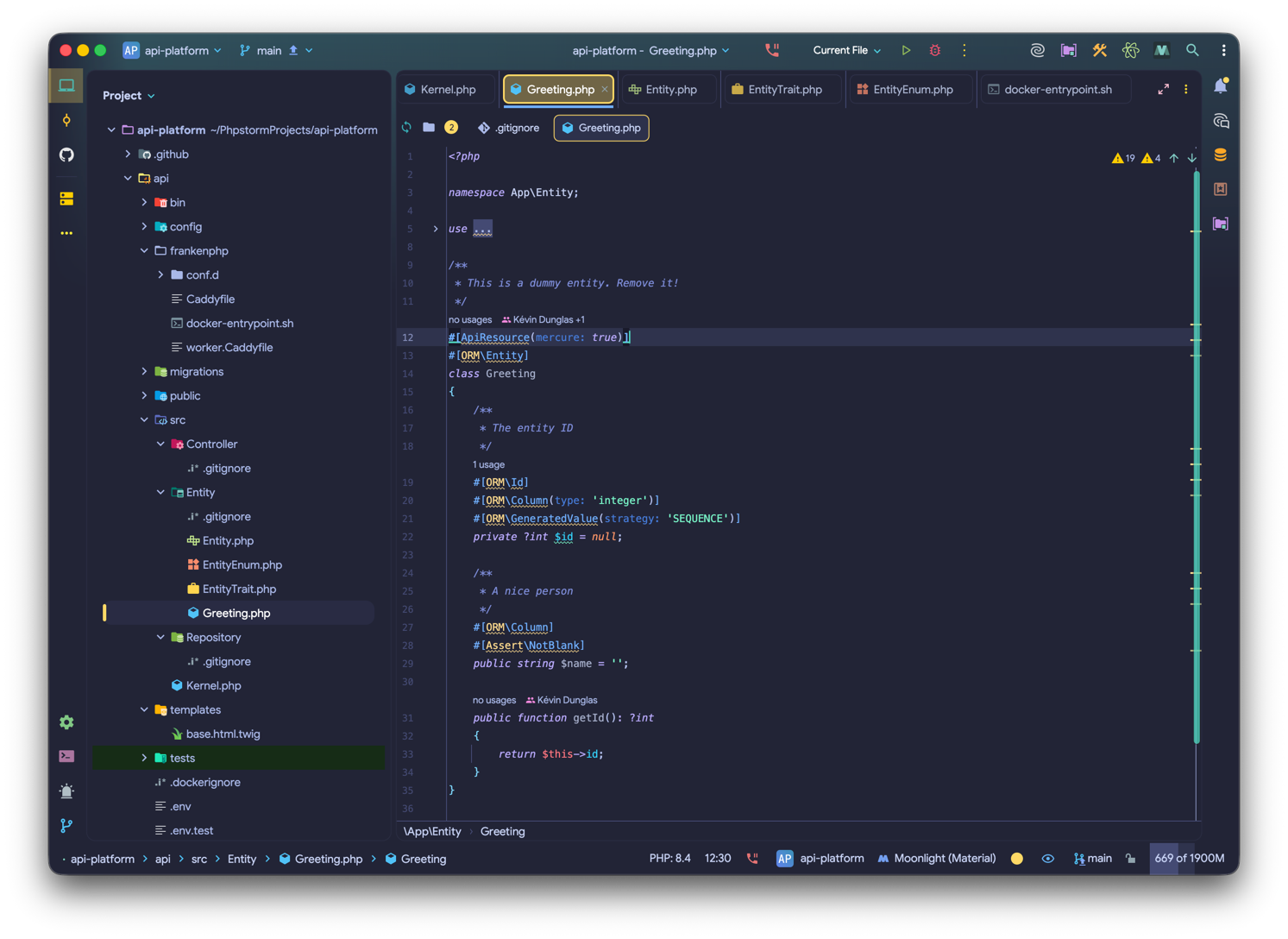
Without Folder Icons:
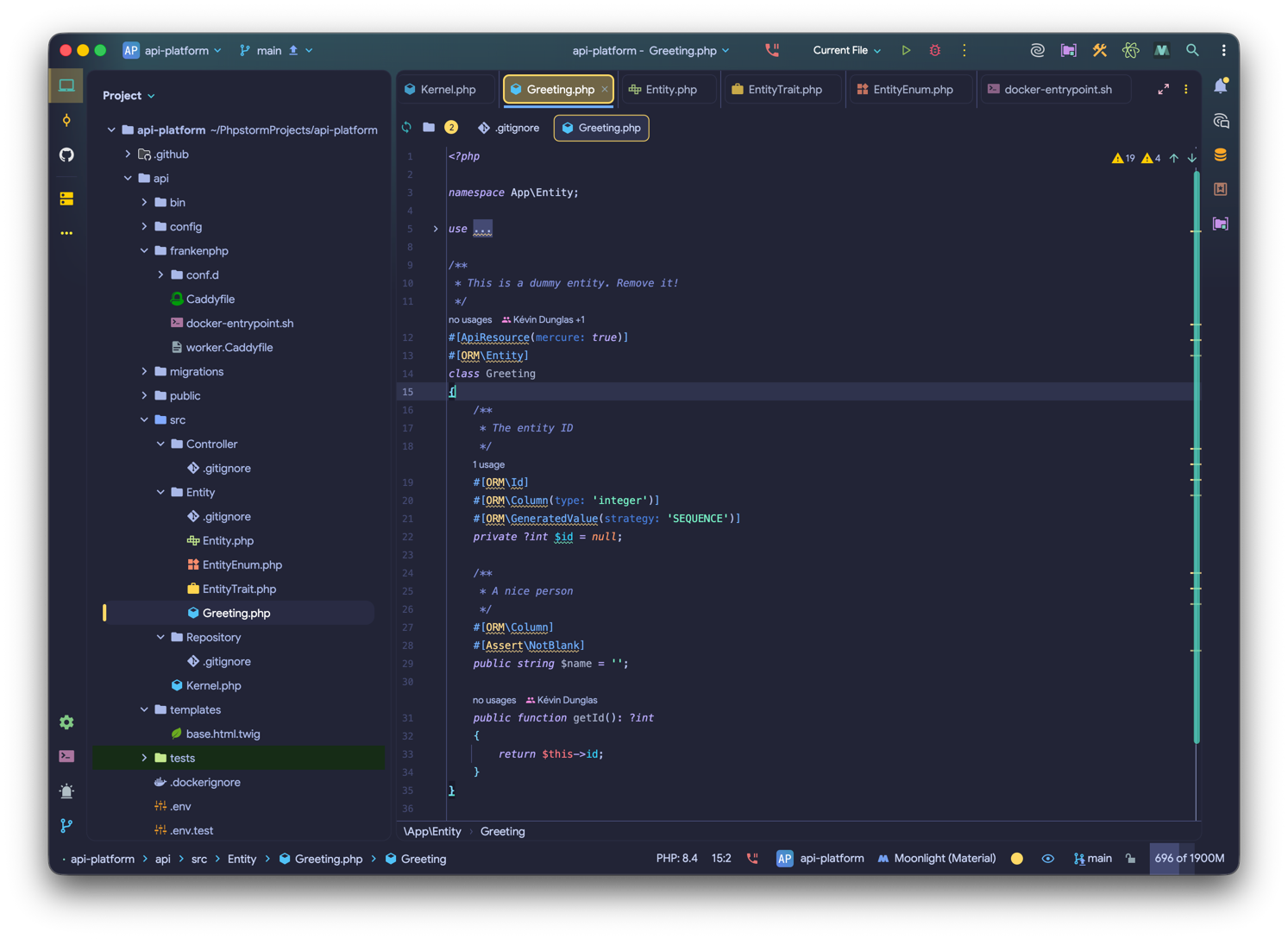
Without PSI Icons:
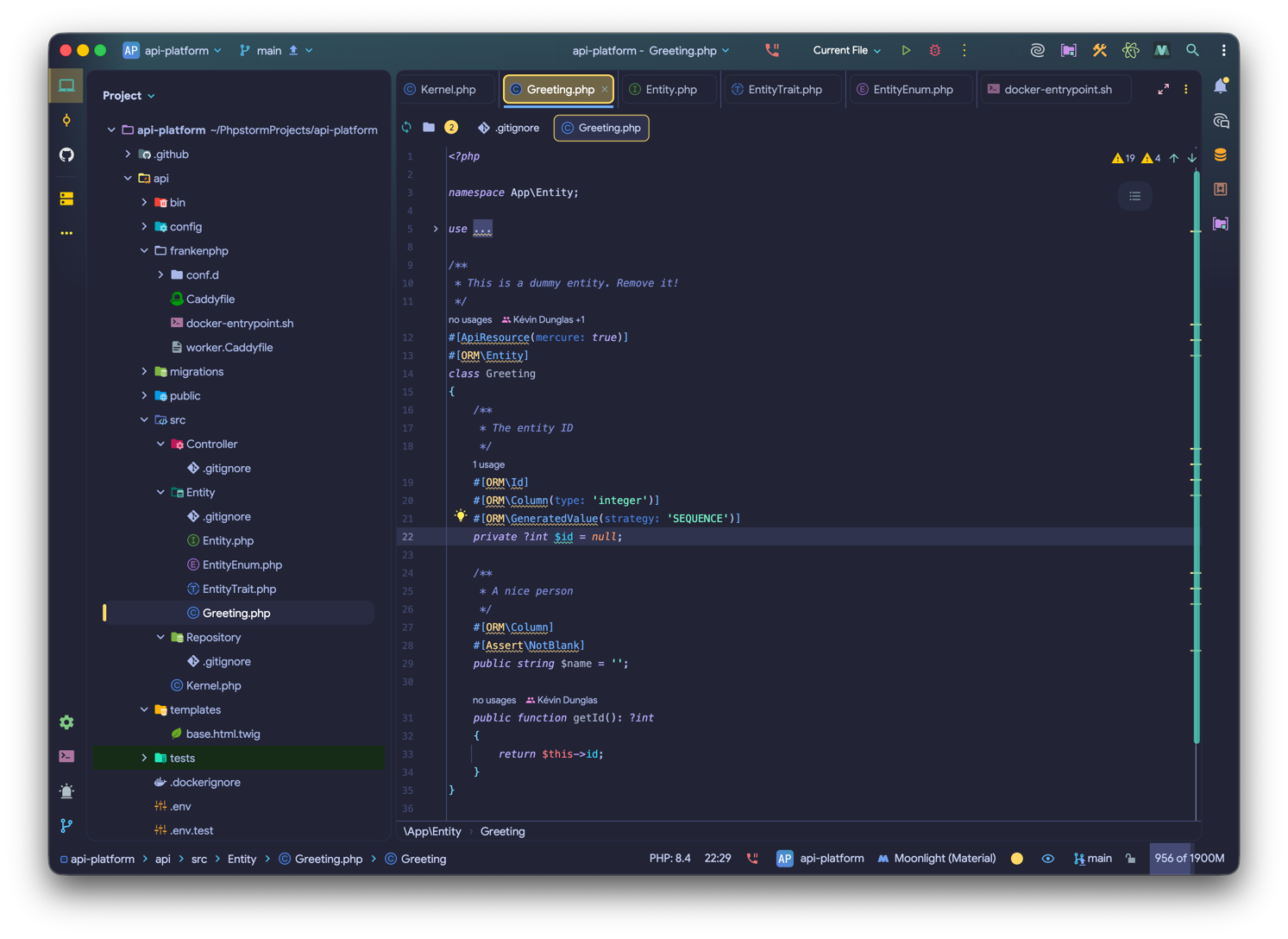
Hollow Folders:
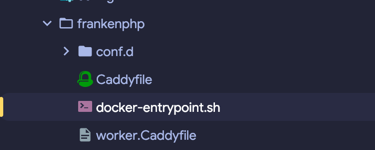
Hollow Decorated Folders:
Icon Packs
Section titled “Icon Packs”Icon packs provide specialized icon sets for specific technologies and frameworks.
- Use Ruby PSI Icons: Uses Ruby-specific PSI icons instead of standard file icons.
- Use Rails Custom Icons: Enables specific icons for Ruby on Rails components (e.g., controllers, jobs, schemas).
- Use Angular Icons: Enables dedicated icons for Angular elements (e.g., components, services).
- Use Angular Icons (Old Icon): Uses the legacy design for Angular icons.
- Use Nest Icons: Enables specific icons for NestJS components (e.g., controllers, middleware).
- Use NextJS Icons: Enables specific icons for NextJS pages and configurations.
- Use Redux Icons: Enables dedicated icons for Redux elements (e.g., actions, reducers).
- Use NgRx Icons: Enables specific icons for NgRx components (e.g., effects, store).
- Use New CSS Icon: Switches to a modern version of the CSS file icon.
- Use Recoil Icons: Enables specific icons for Recoil atoms and selectors.
- Use Tests Icons: Applies distinct icons to test files to help them stand out from source code.
Hide Icons
Section titled “Hide Icons”If you prefer a more minimalist interface, you can completely hide certain icon types.
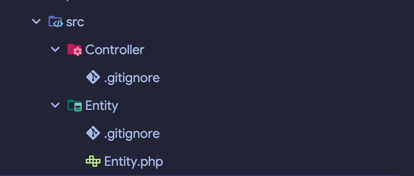
- Hide File Icons: Removes all file icons from the UI.
- Hide Folder Icons: Removes all folder icons from the UI.
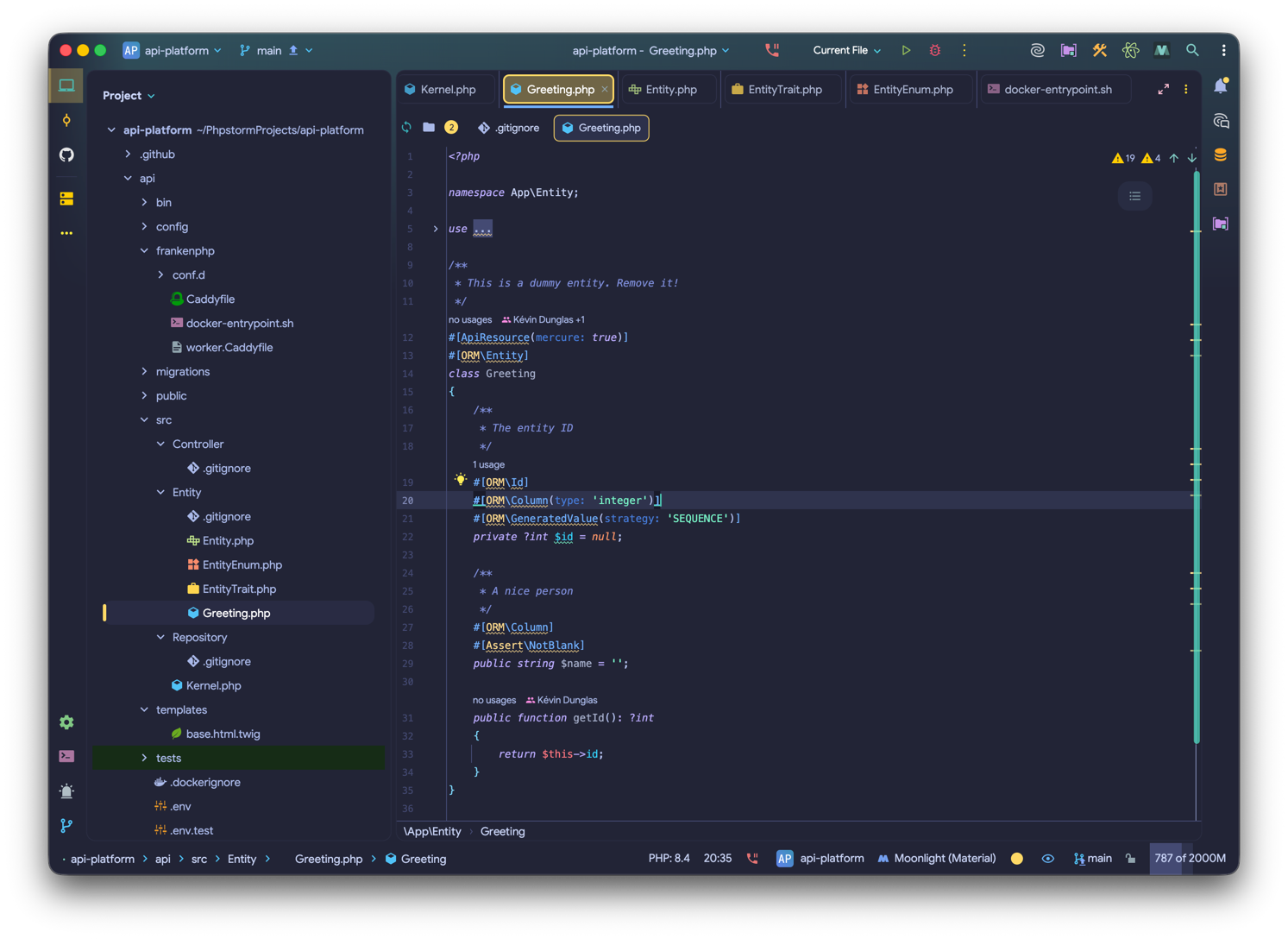
Hide File Icons:
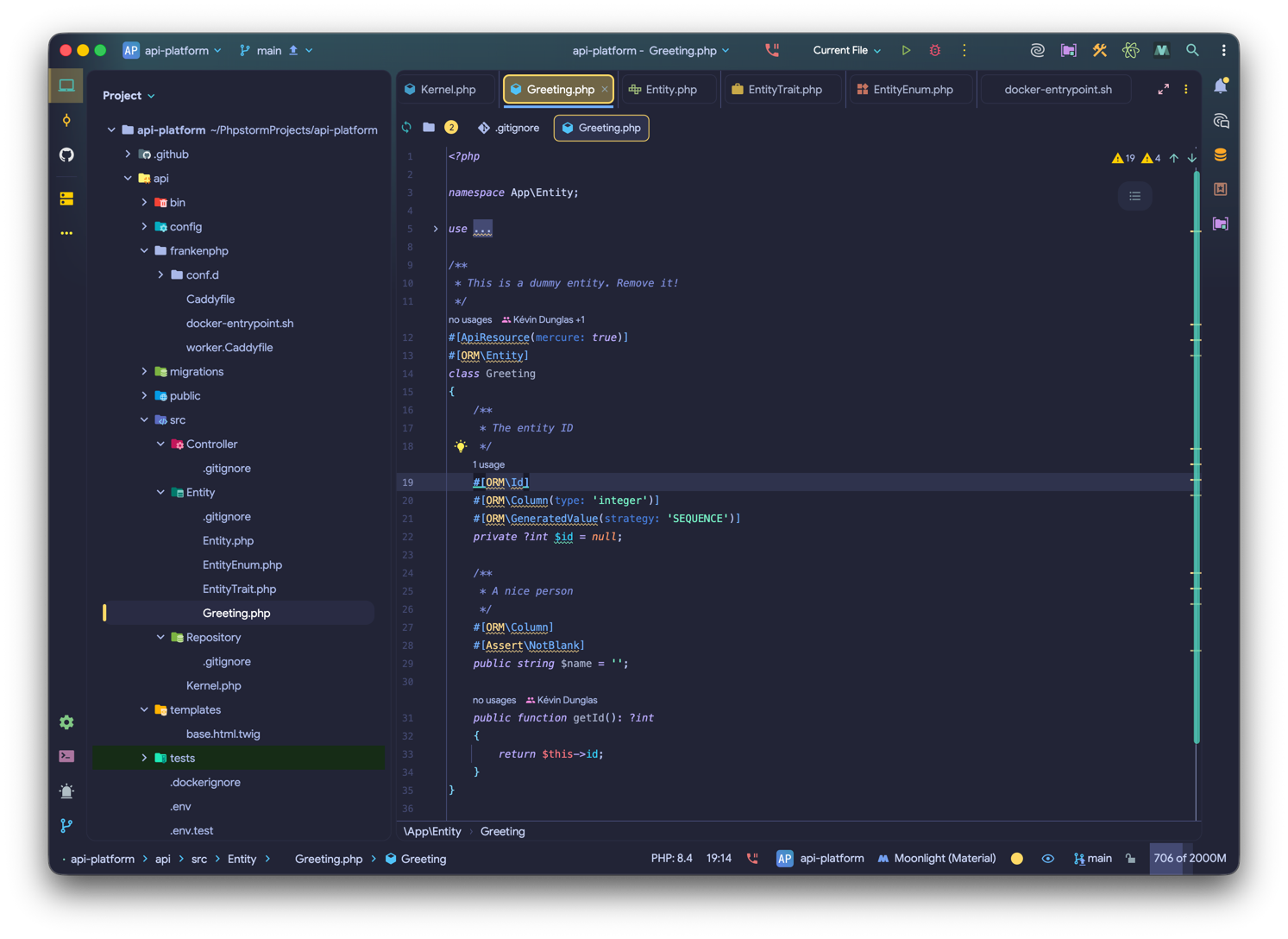
Hide Folder Icons:
Appearance Settings
Section titled “Appearance Settings”Fine-tune the visual style of your icons to match your preferred theme.
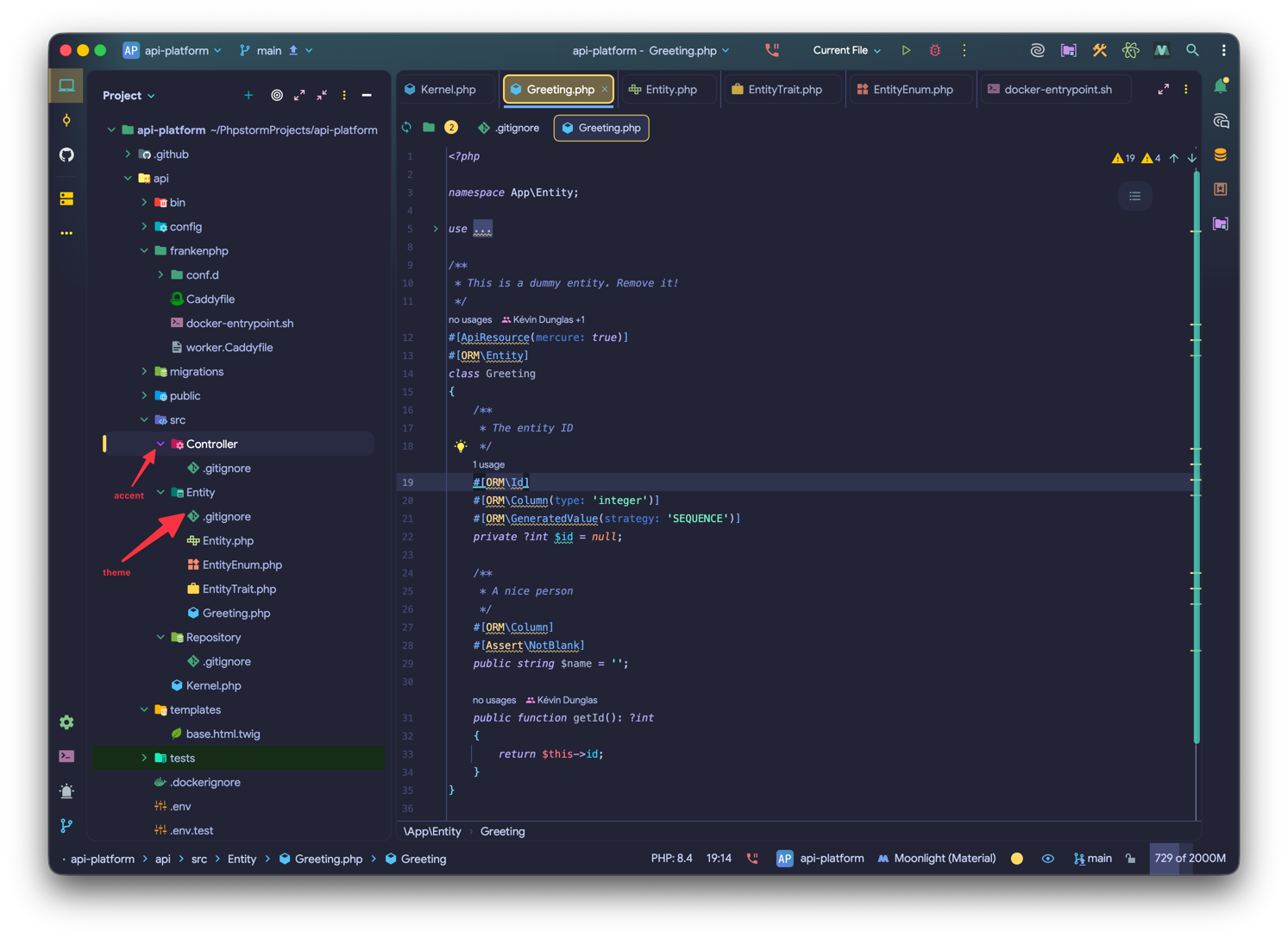
- Custom Accent Color: Overrides the default accent color of the icons with a color of your choice.
- Custom Themed Color: Overrides the primary color of the icons.
Example: Custom Accent and Themed Colors:
Size and Line Height
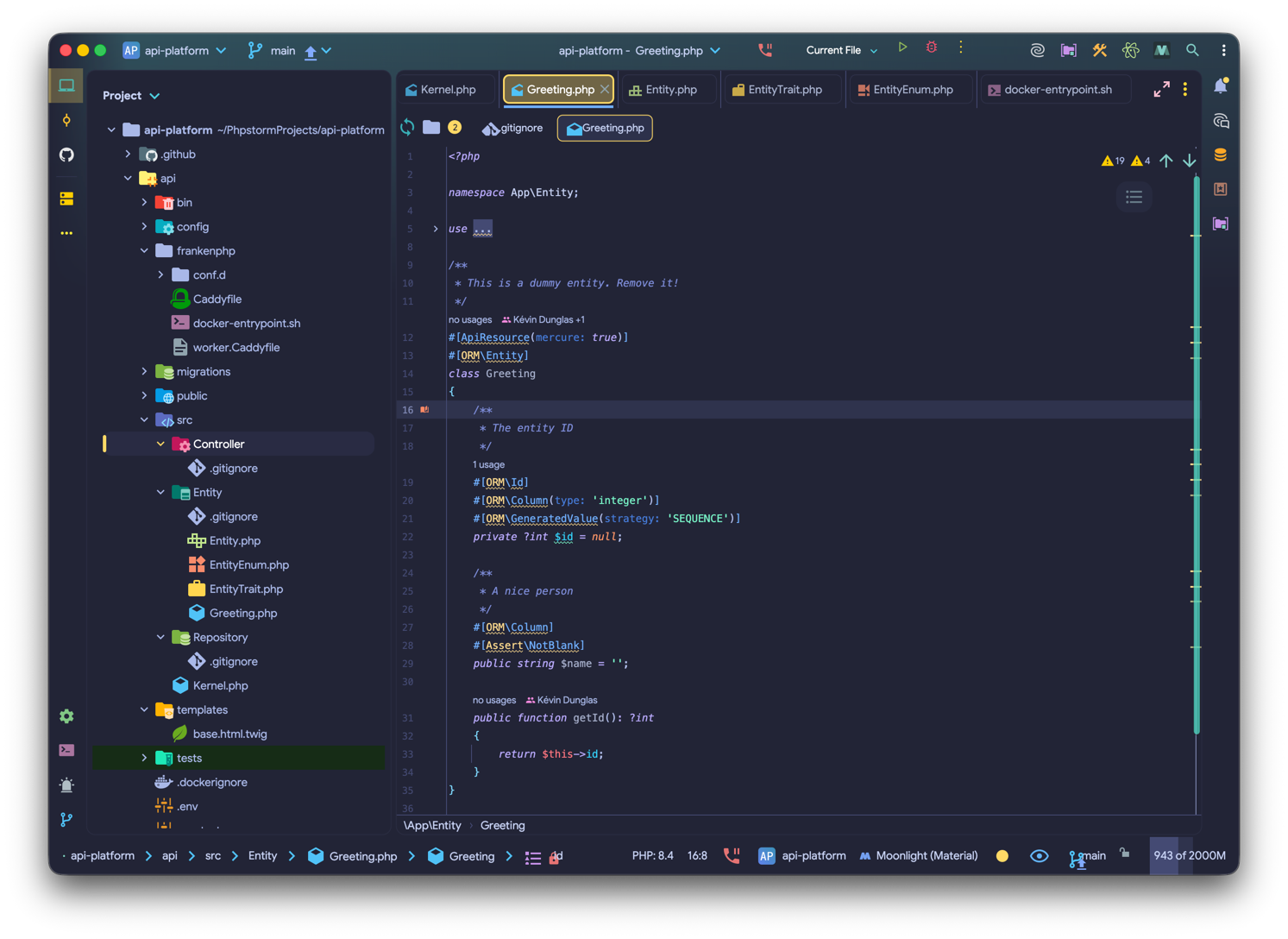
Section titled “Size and Line Height”- Custom Icon Size: Set a custom size for the icons (default is 16).
- Custom Line Height: Set a custom line height in Tree Views (default is 30).
Screenshots
Section titled “Screenshots”Big Icons:
Small Icons:
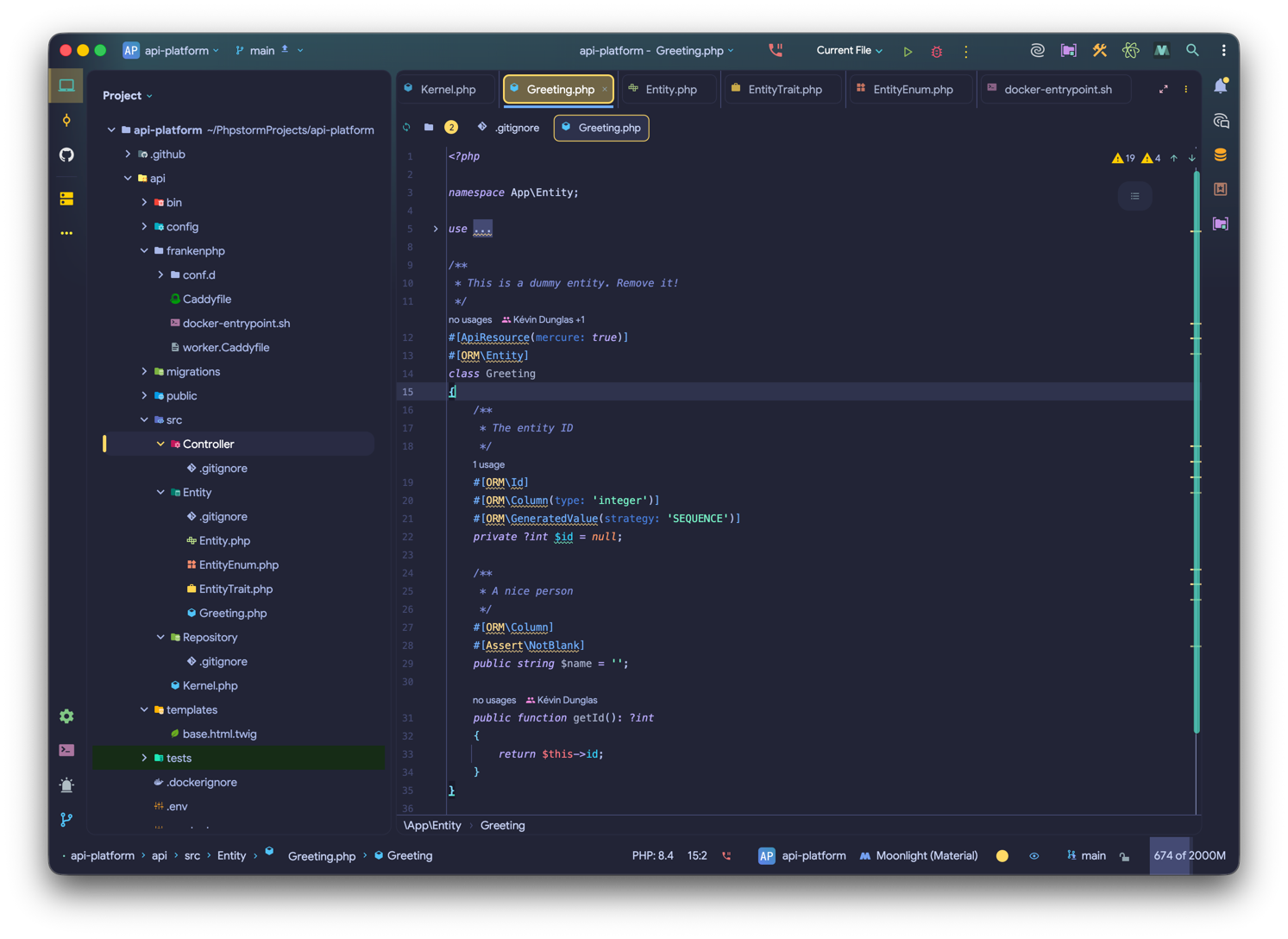
Large Line Height:
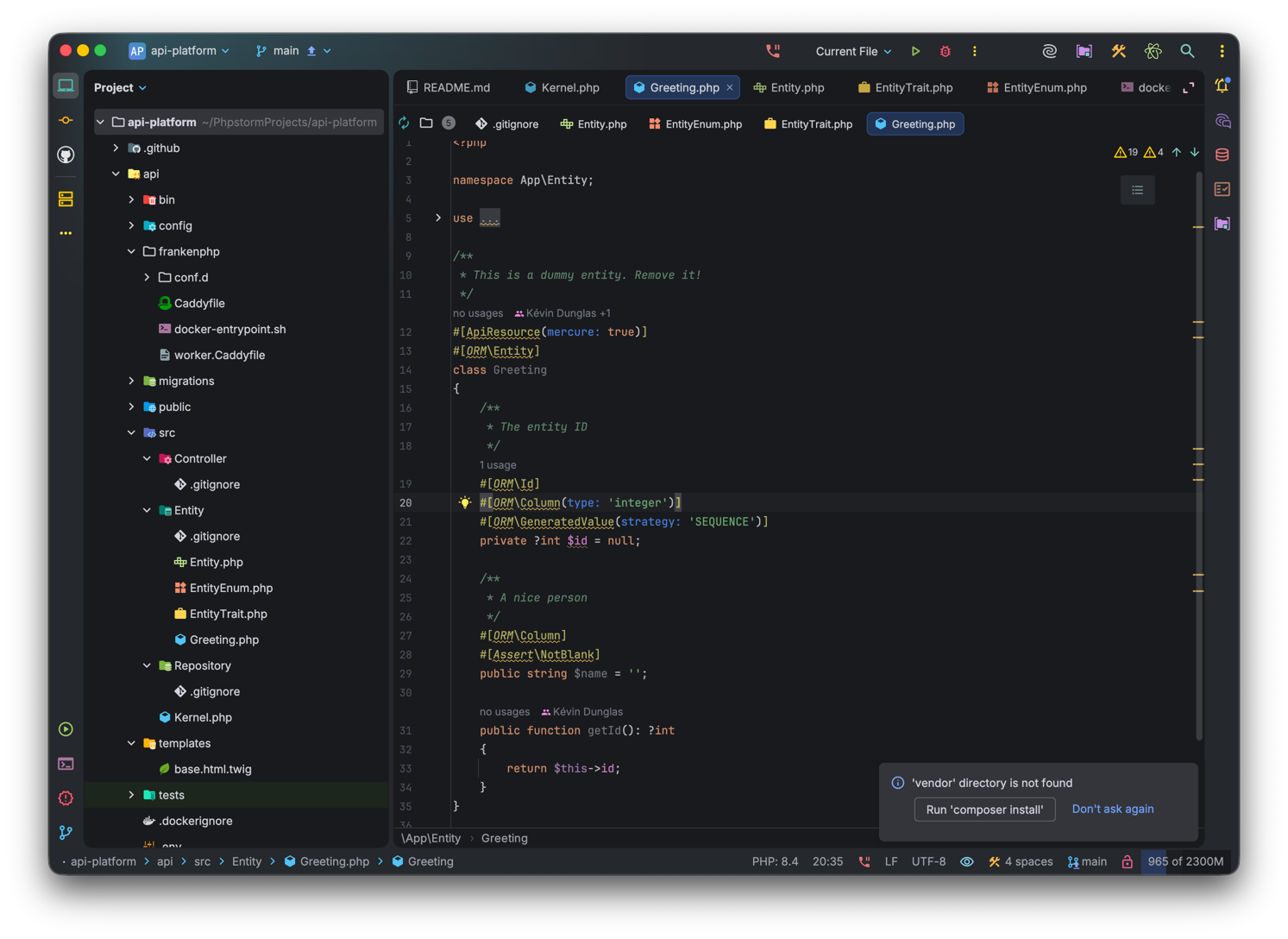
Other Settings
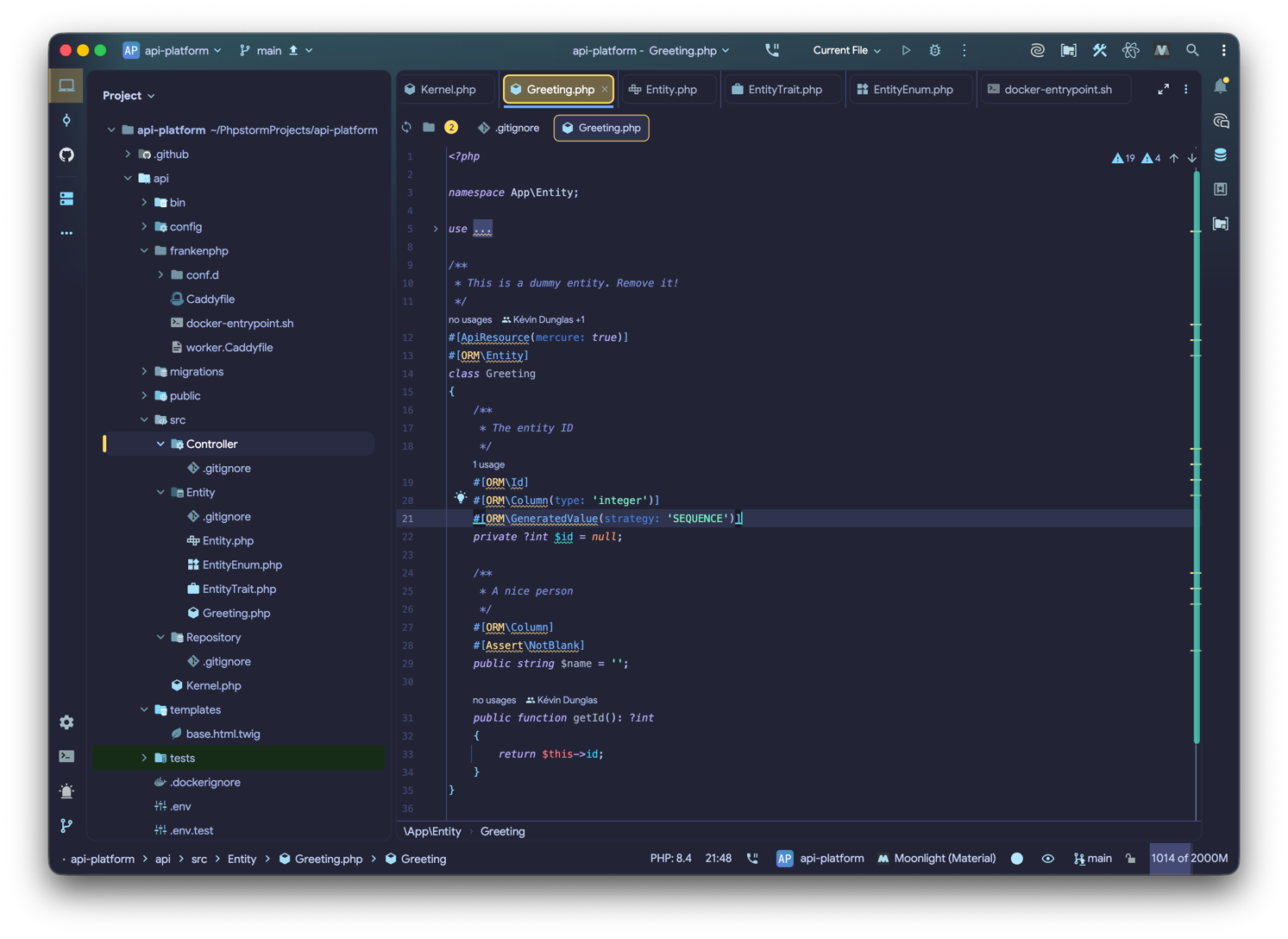
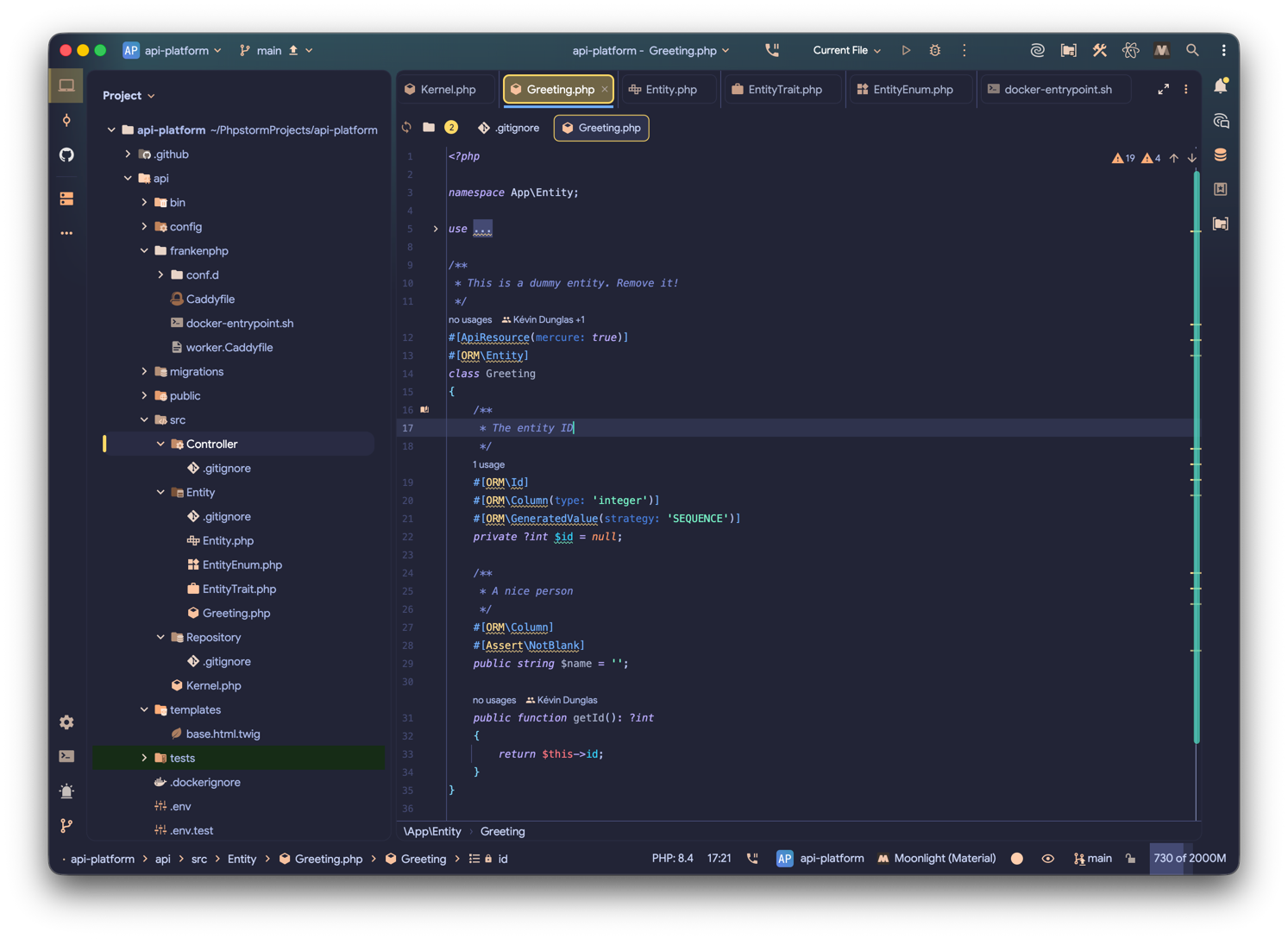
Section titled “Other Settings”- Monochrome Icons: Set the whole IDE with a Monochrome filter. The color is customizable.
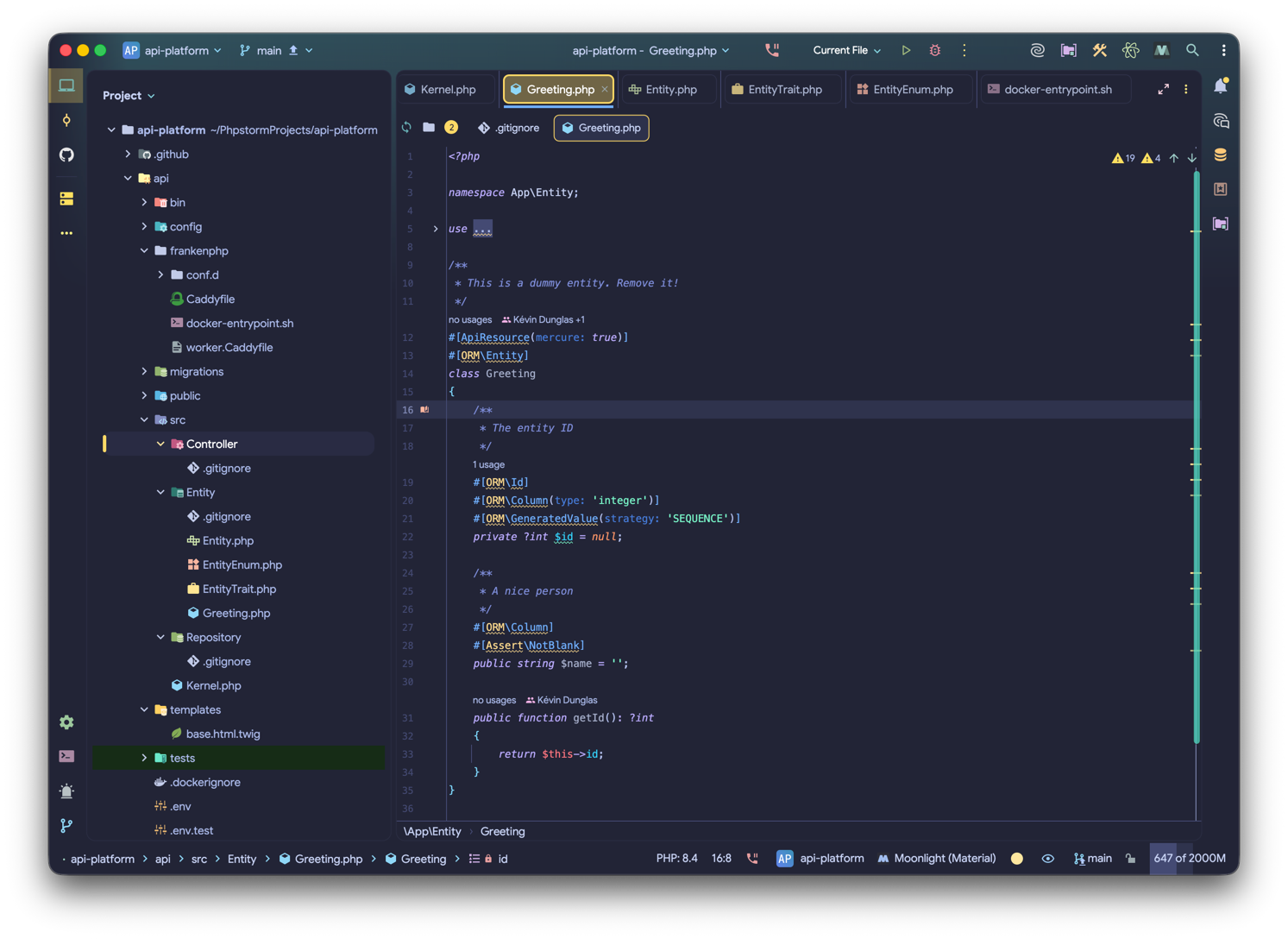
- Custom Saturation: Customize the saturation of the icons (0 is regular, 20 is completely desaturated).
- Arrows Style: Change the style of the arrows in trees. Options include Material, Darcula, Plus-Minus, Arrows, and Circle.
Screenshots
Section titled “Screenshots”Monochrome Icons (Blue):
Monochrome Icons (Orange):
Custom Saturation:
Full Saturation:
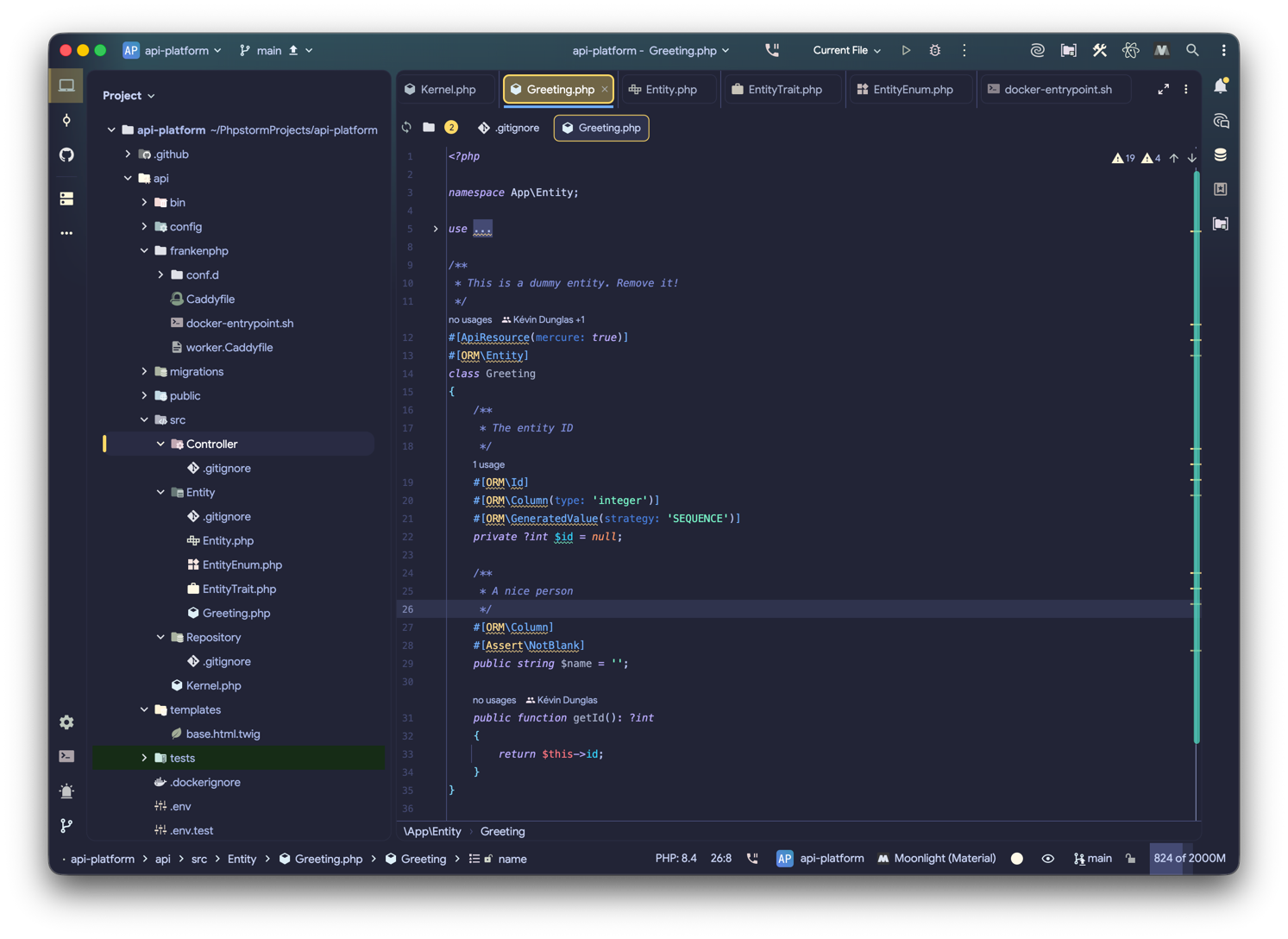
Arrows Style
Section titled “Arrows Style”Choose between a list of different arrow styles:
- Material: Material Design chevrons
- Darcula: IntelliJ Darcula triangles
- Plus-Minus: Plus and Minus signs
- Arrows: Simple arrows
- Circle: Arrows inside circles
- None: Hide arrows
Screenshots
Section titled “Screenshots”Darcula Arrows:
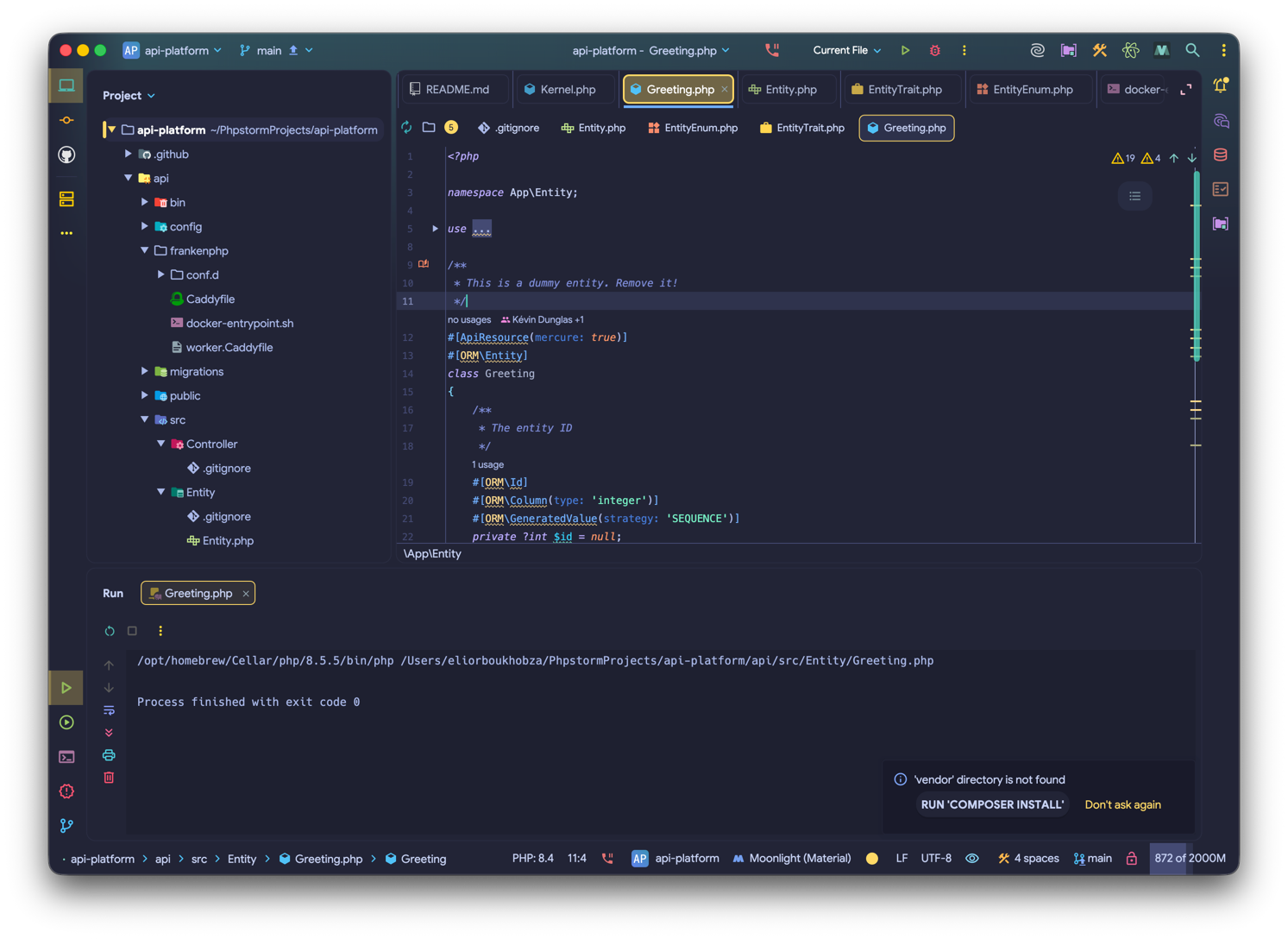
Plus-Minus Arrows:
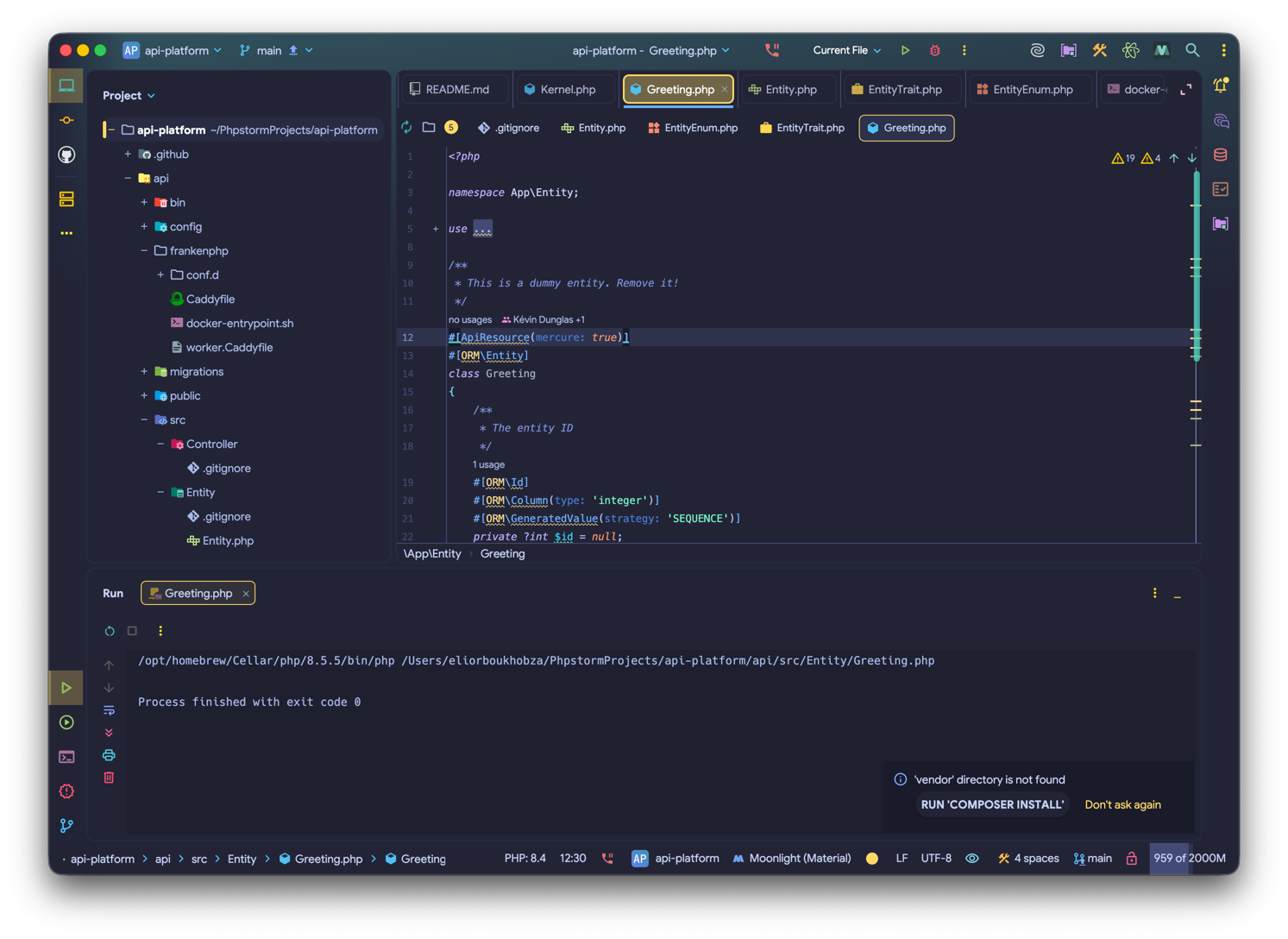
Arrows:
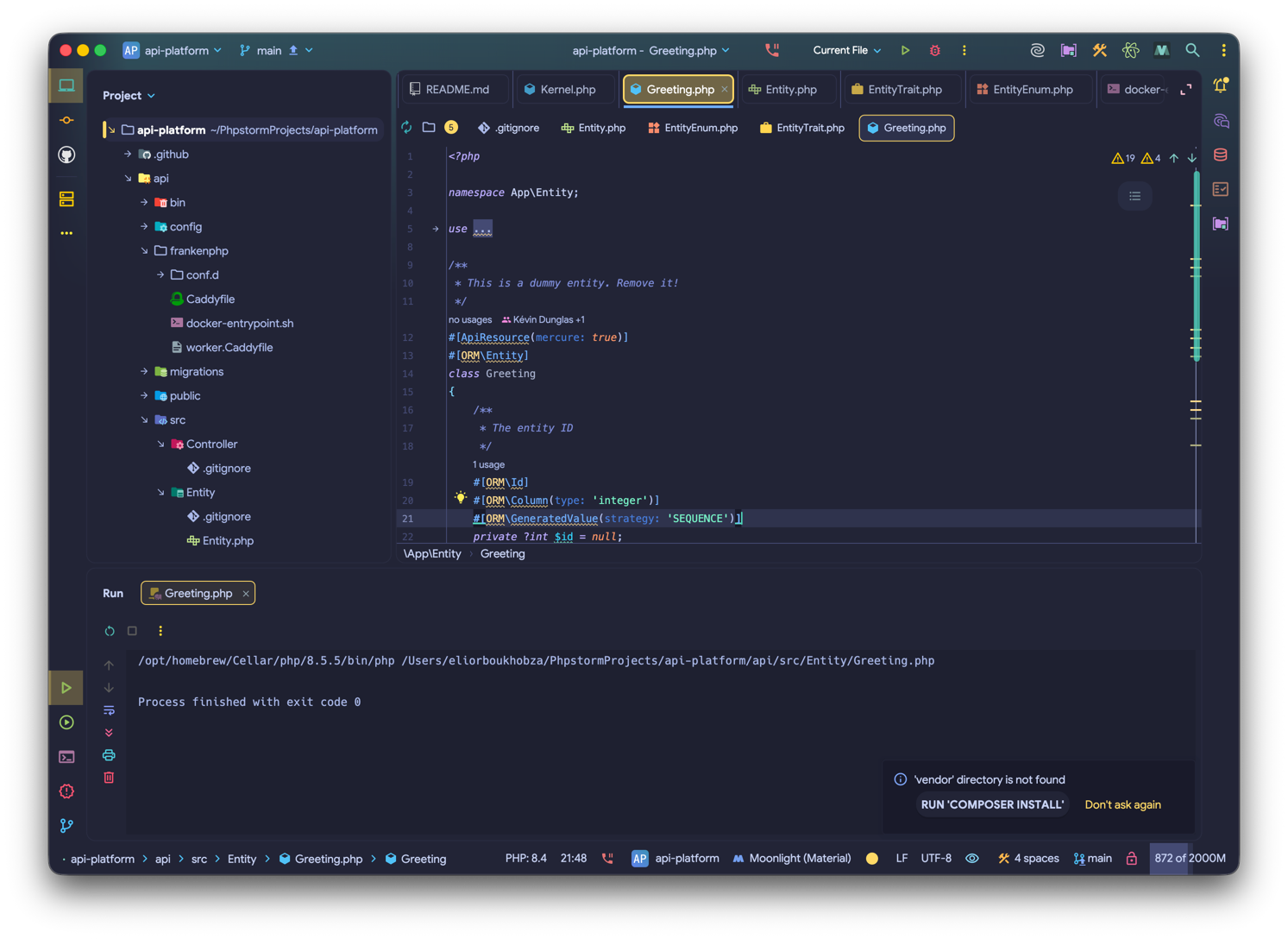
Circle Arrows:
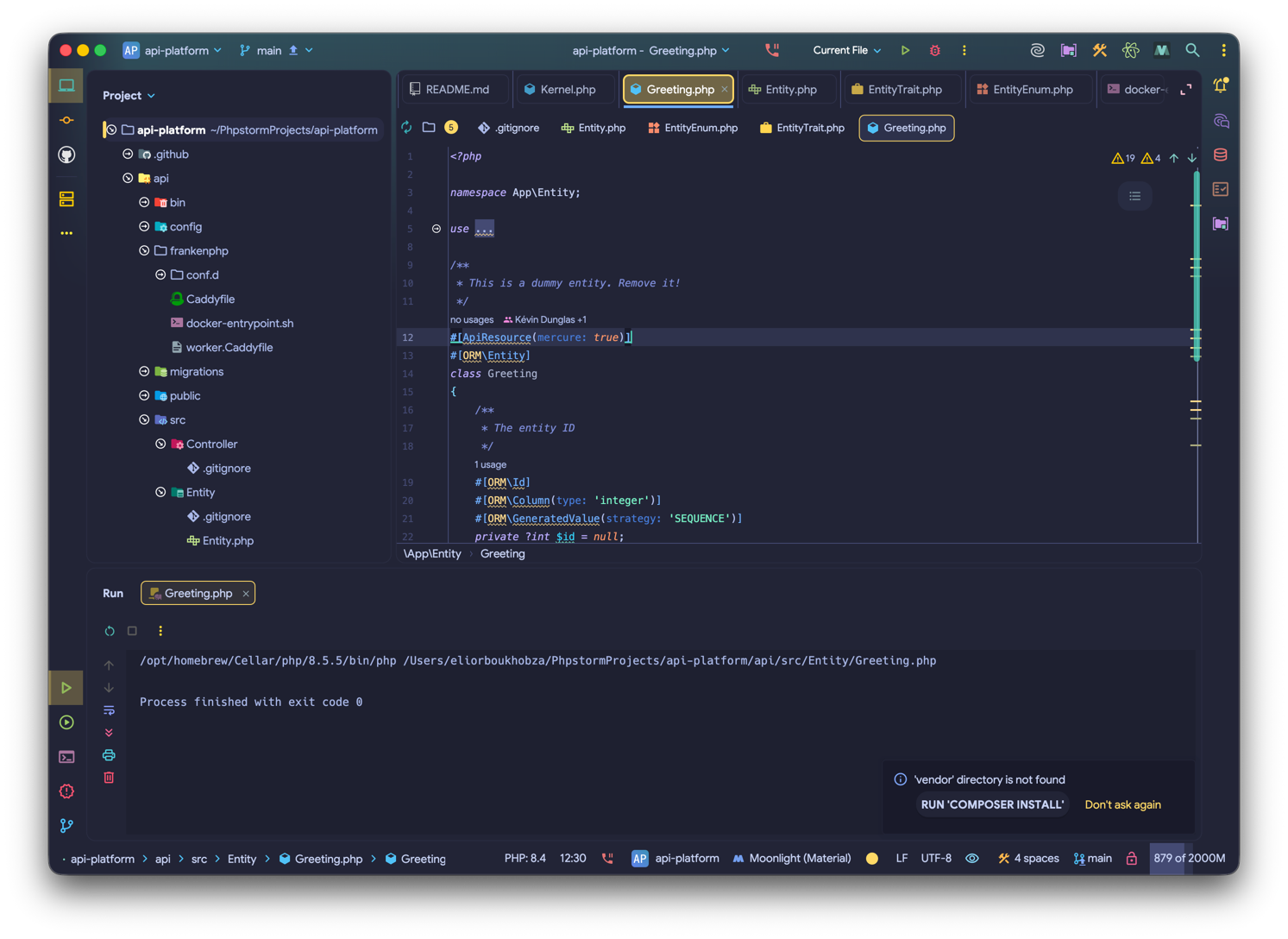
No Arrows:
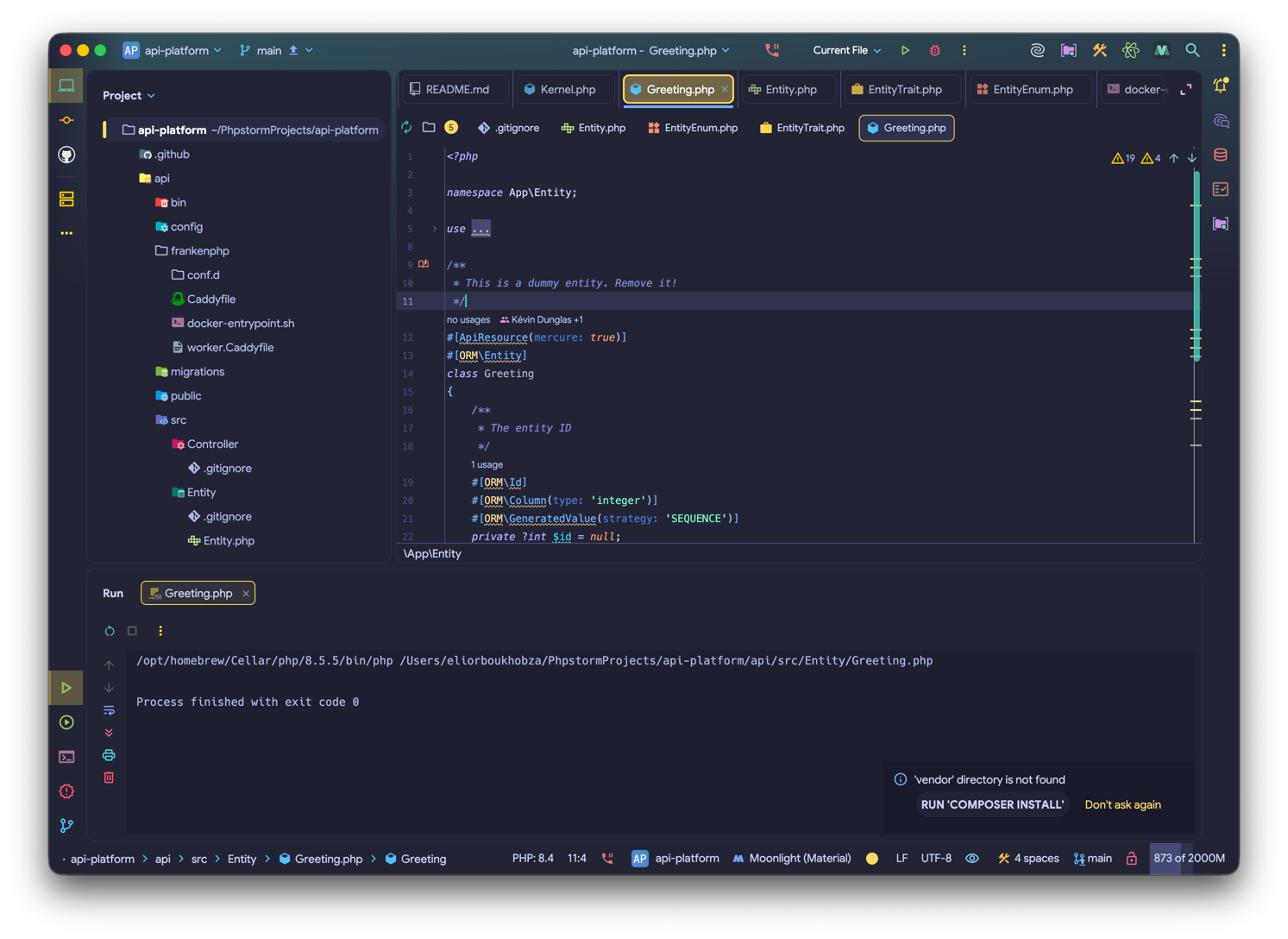
Advanced Settings
Section titled “Advanced Settings”- Enable New Icons (WIP): Preview the upcoming “New UI” icon set (Work in Progress).
- Fix Action Buttons Color: Ensures action buttons in the toolbar use consistent coloring.
- Low Power Mode: Disables project view decorators to reduce resource usage. Note: This should be disabled when using the plugin with JetBrains Gateway.
- Disable Icon Indexing: Turn this setting OFF only if you experience IDE crashes that appear related to icon processing.
What’s Next?
Section titled “What’s Next?”Explore advanced customization options:
- Customization - Create advanced icon mappings